Feature spotlight
One shopping list for the whole family
Add what's run out the moment you notice, tick it off in the shop, and let the week's dinners fill the list for you.

You're standing in the shop with a basket on your arm. At home, someone has just used the last of the milk, and you'll find out at breakfast tomorrow.
The shopping list in DaiTrace is one list for the whole family. Whoever notices that something has run out adds it, wherever they are, and whoever does the shopping has the full list on their phone. Nobody has to send a message saying "can you pick up bread as well?", and nobody has to remember to read one.
Tick things off as they go in the basket, and the list is ready for the next trip.
How it works
Open the shopping list
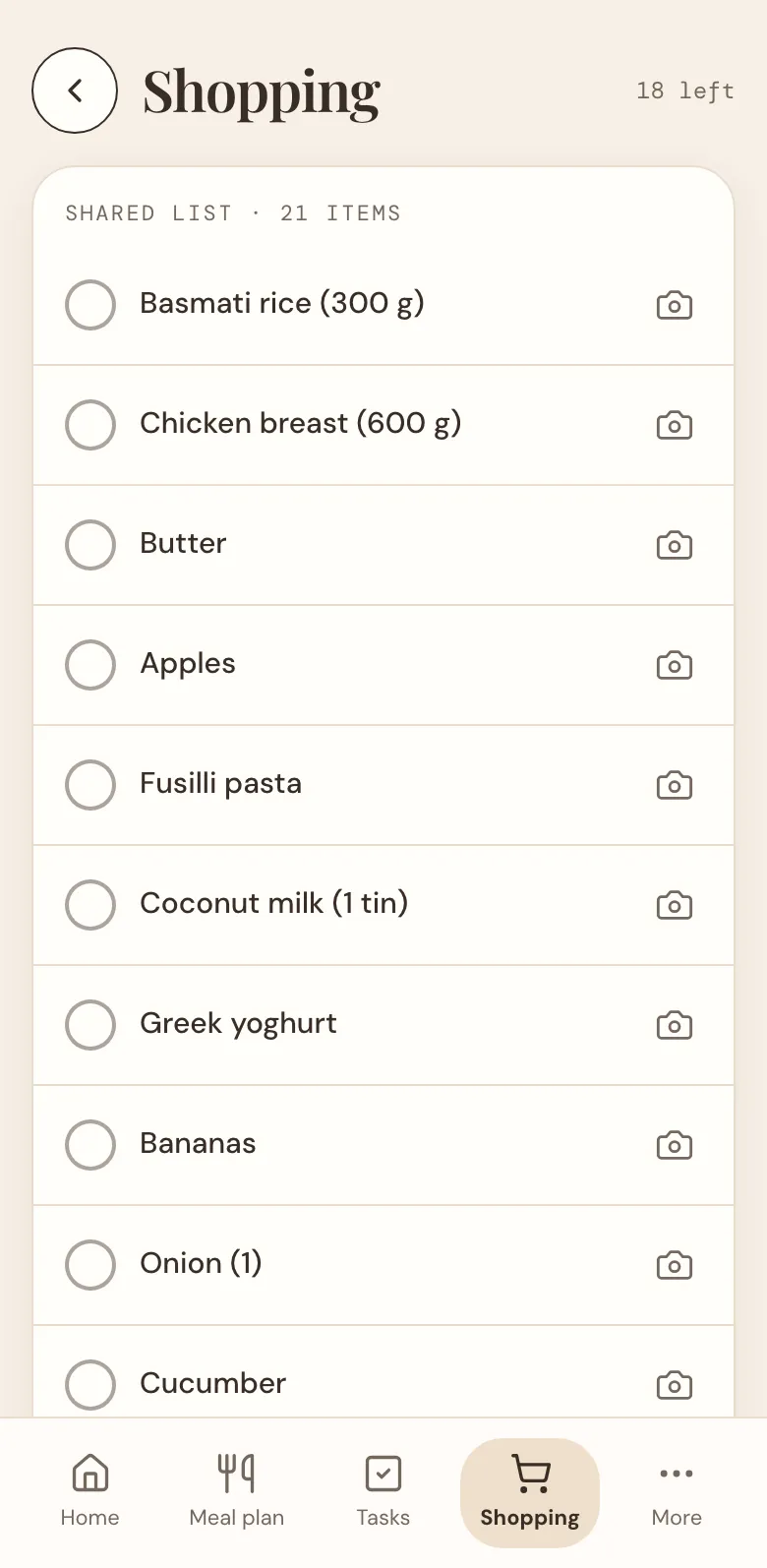
Tap Shopping at the bottom of the screen. On a tablet, Shopping is in the menu down the side.
The list shows everything still to buy, and how many things are left at the top.
Add what you need
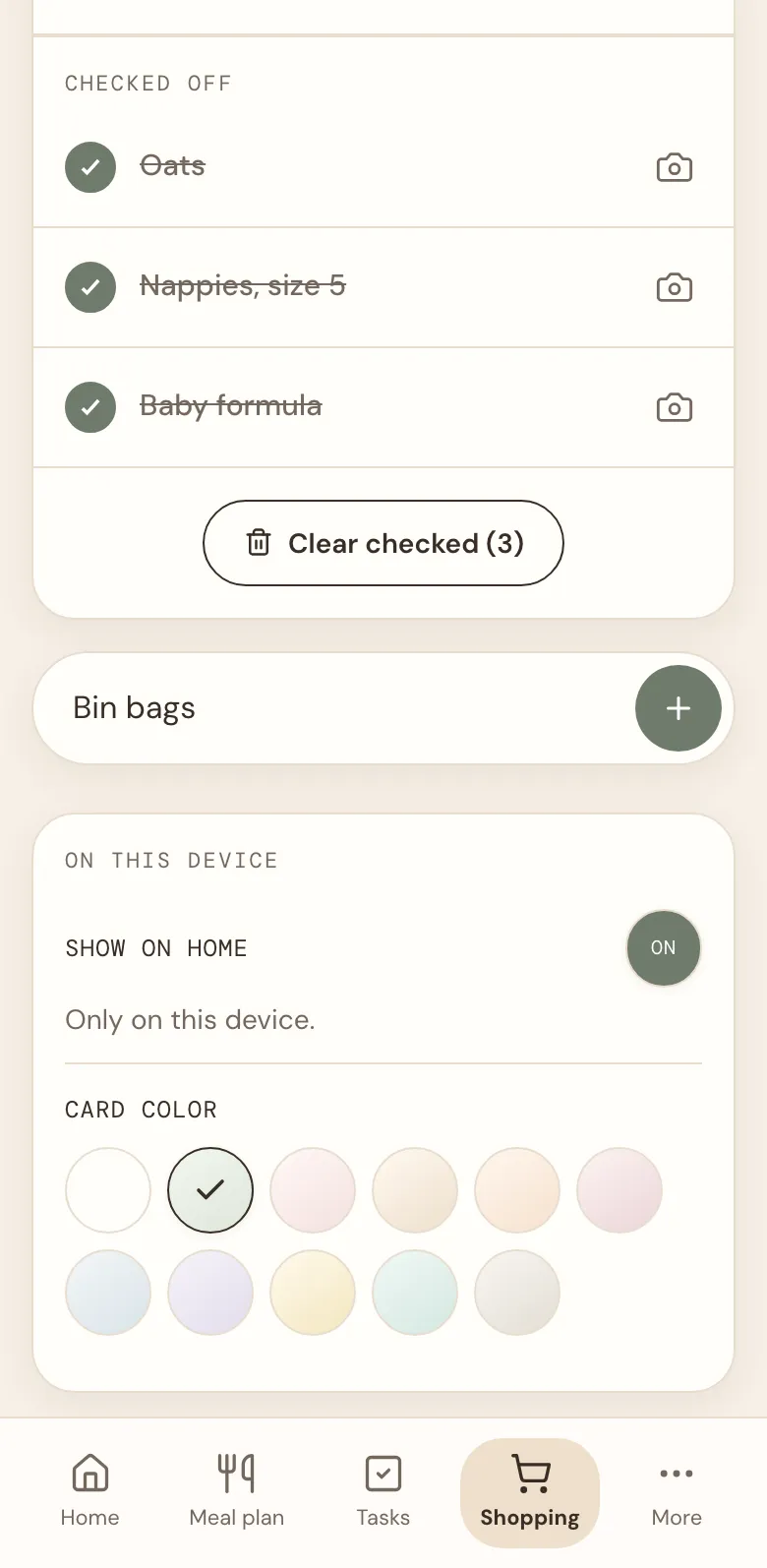
Write the item in the Add item… field under the list and tap +. It's on the list at once, for everyone in the family.
If the others have turned on notifications, their phones say so: Sofie added to shopping: Bin bags. You turn them on under Profile, on each phone.
Tick it off in the shop
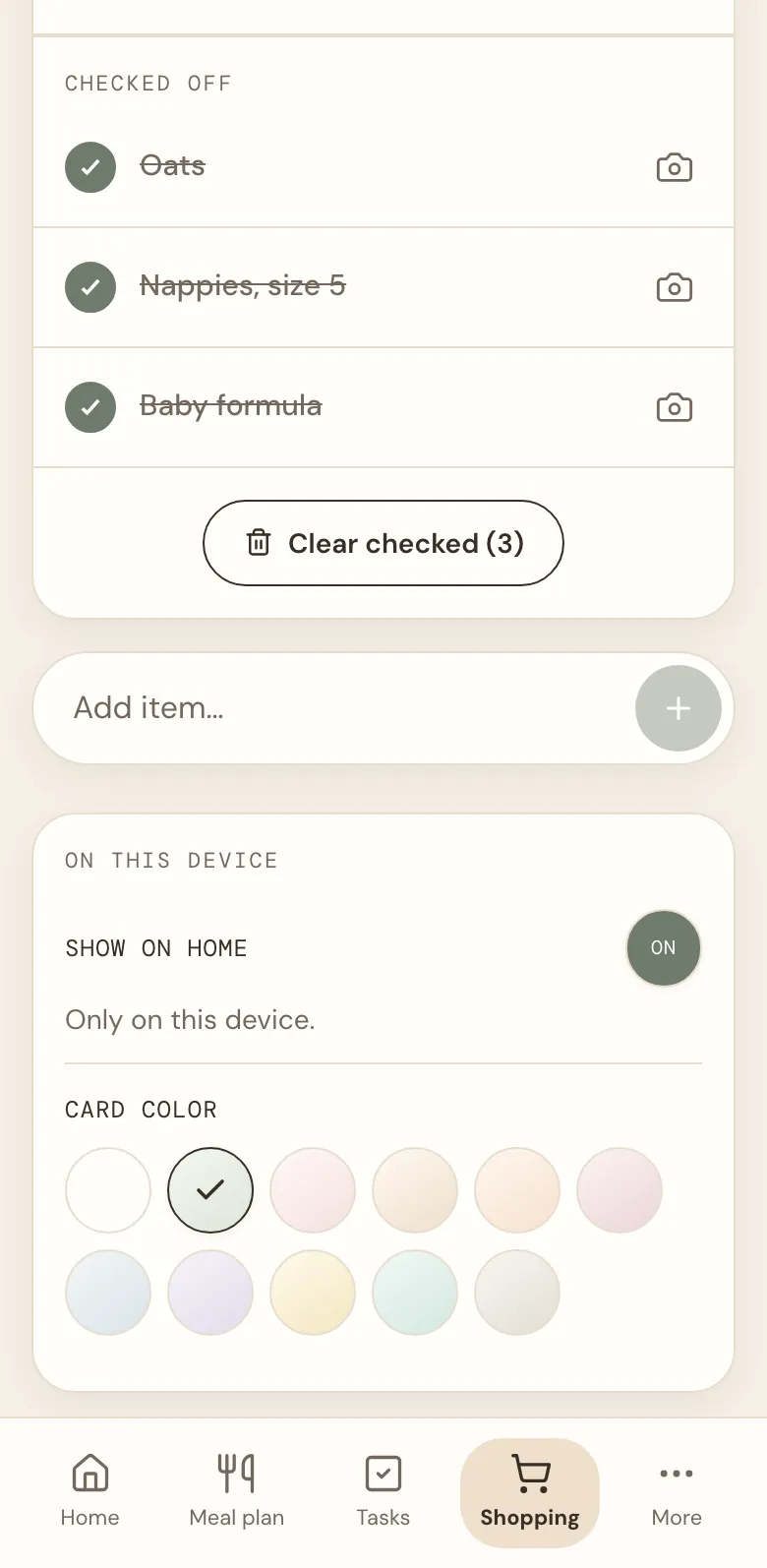
Tap the circle in front of an item when it's in the basket. It moves down under Checked off, crossed out, so the things still to find stay at the top. Ticked the wrong one? Tap it again.
When you're home, tap Clear checked to remove the ticked items. They're removed for everyone, so the list starts fresh for the next trip.
Change a name
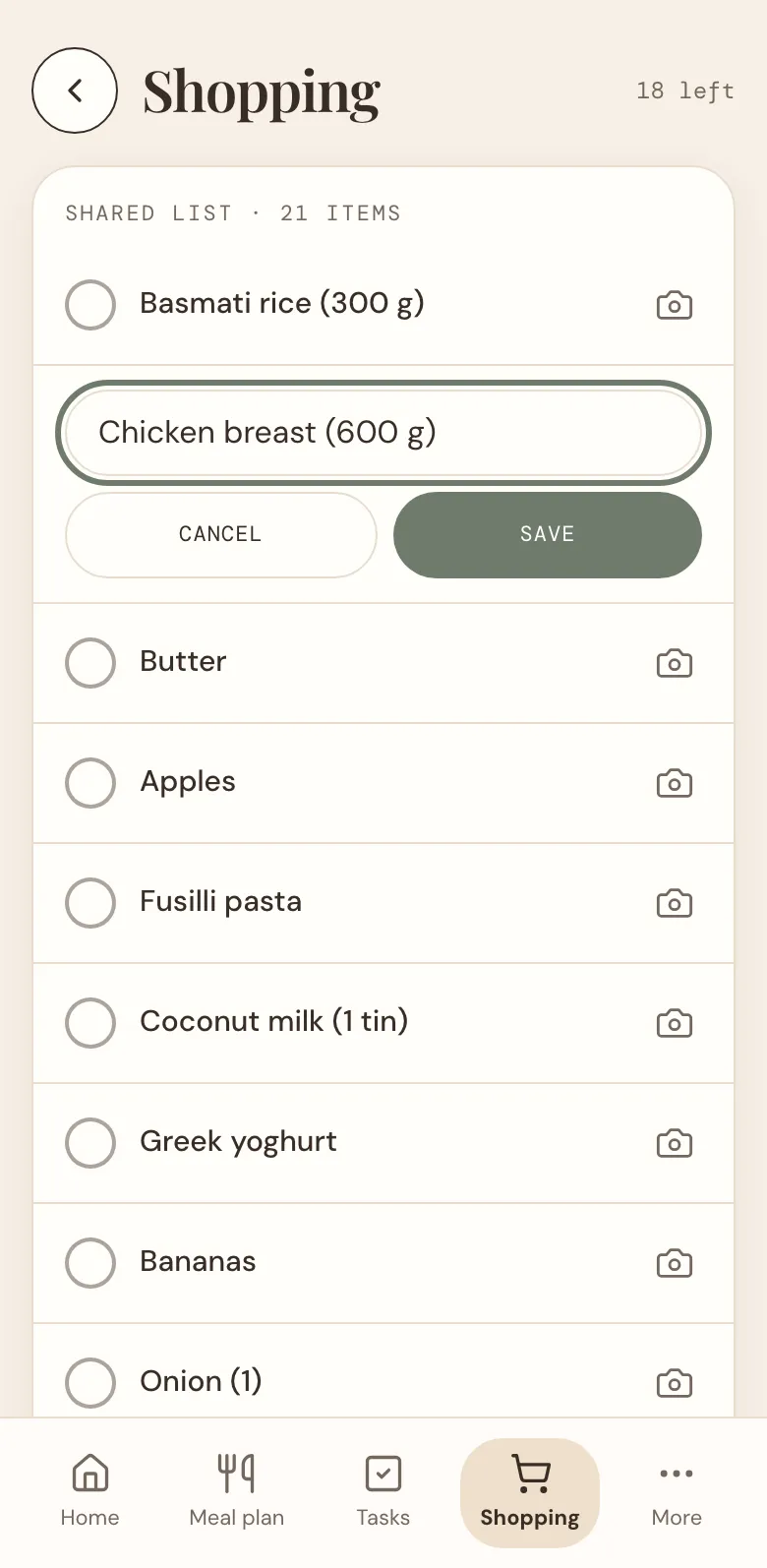
Wrote "aples", or need 900 g of chicken instead of 600? Tap the item's name, change it and tap Save.
Add a photo, so nobody buys the wrong one
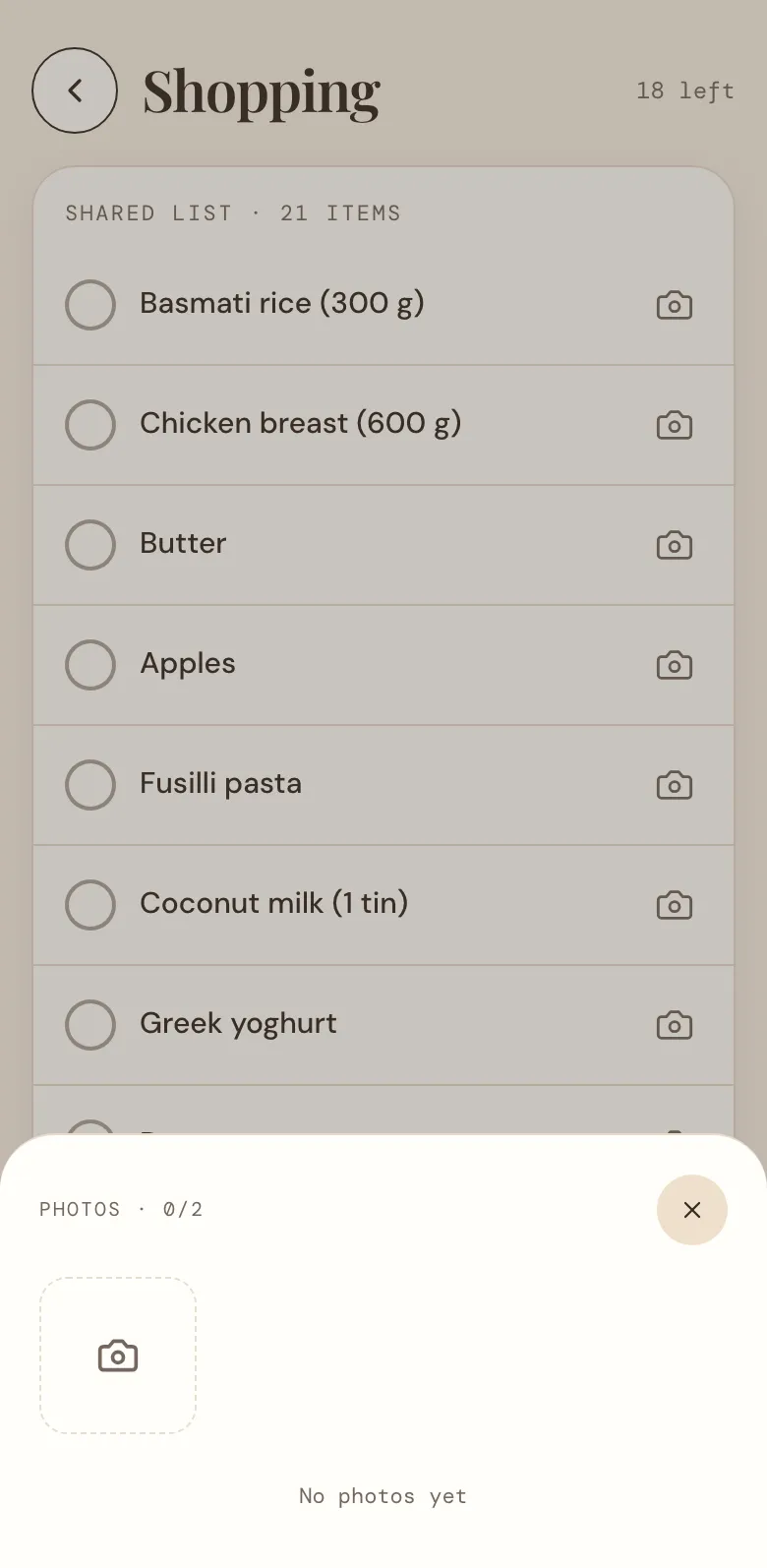
Is it the yoghurt with the blue lid, or the one with the green? Tap the camera at the end of an item and add a photo from your phone. Whoever does the shopping taps the camera to see it.
Add a dinner's ingredients in one go
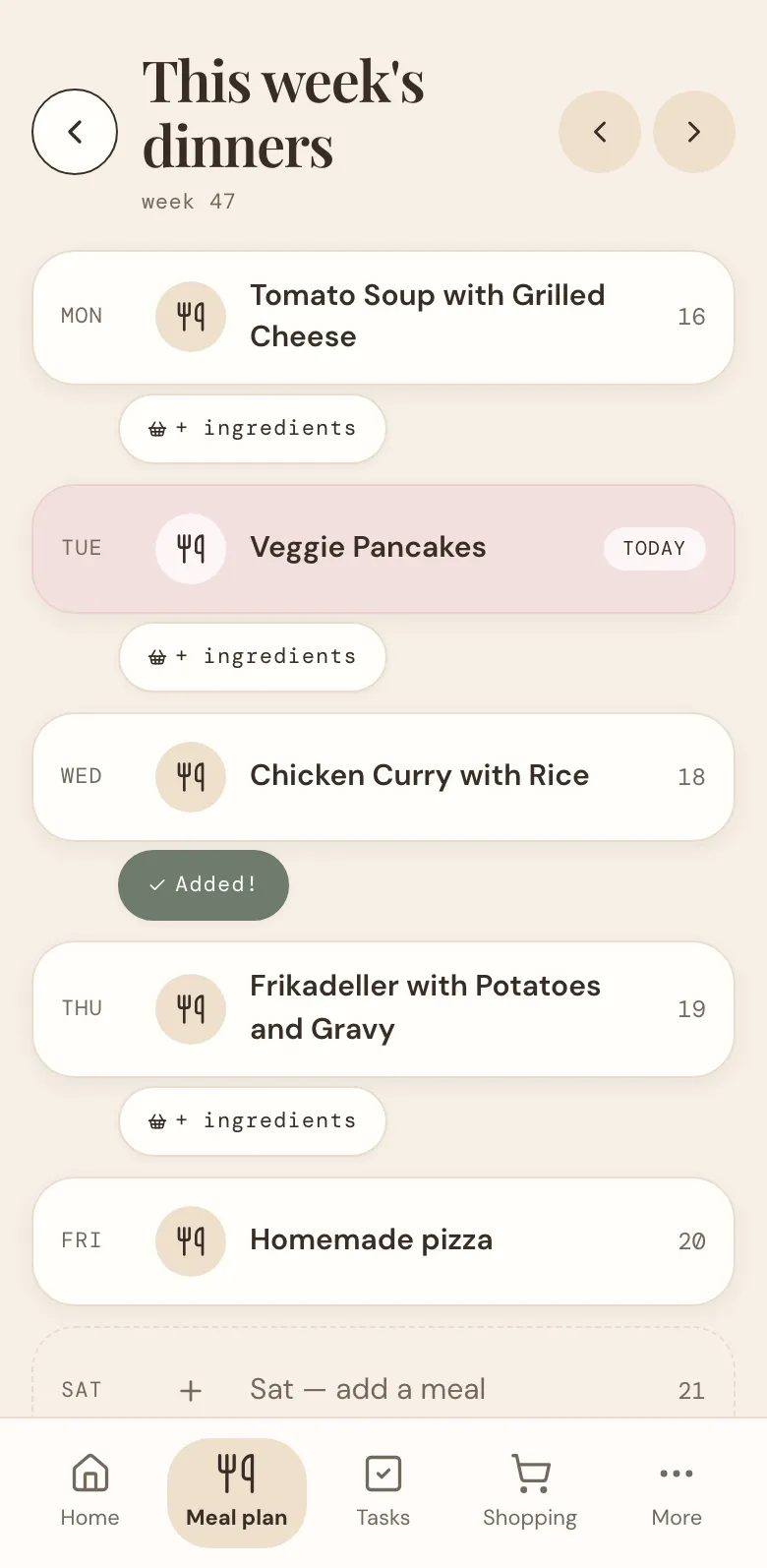
If you plan the week's dinners in DaiTrace, the meal plan can fill the shopping list for you. Under each dinner that comes from your recipe library, tap + ingredients. The recipe's ingredients go on the shopping list, with the amounts in brackets.
Before the big weekly shop, tap + ingredients under each of the week's dinners, then go through the list and tick off what's already in the cupboard.
On Home and the Kitchen screen
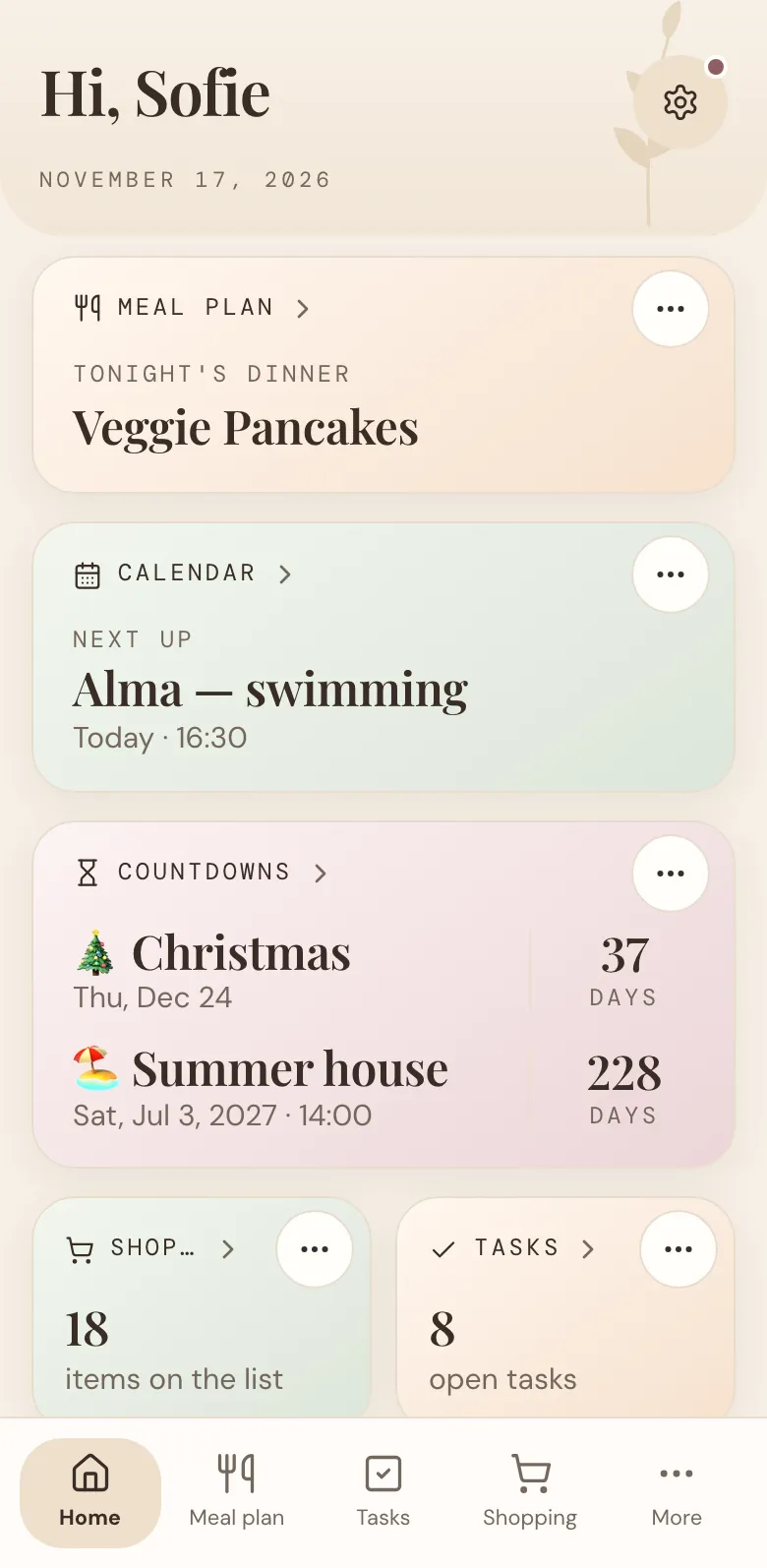
The Shopping card on Home shows how many things are on the list. Tap it to open the list. If you'd rather not see it, tap ⋯ on the card and hide it on this phone, or give it a colour of your own. You can turn it back on at the bottom of the Shopping page, under On this device.
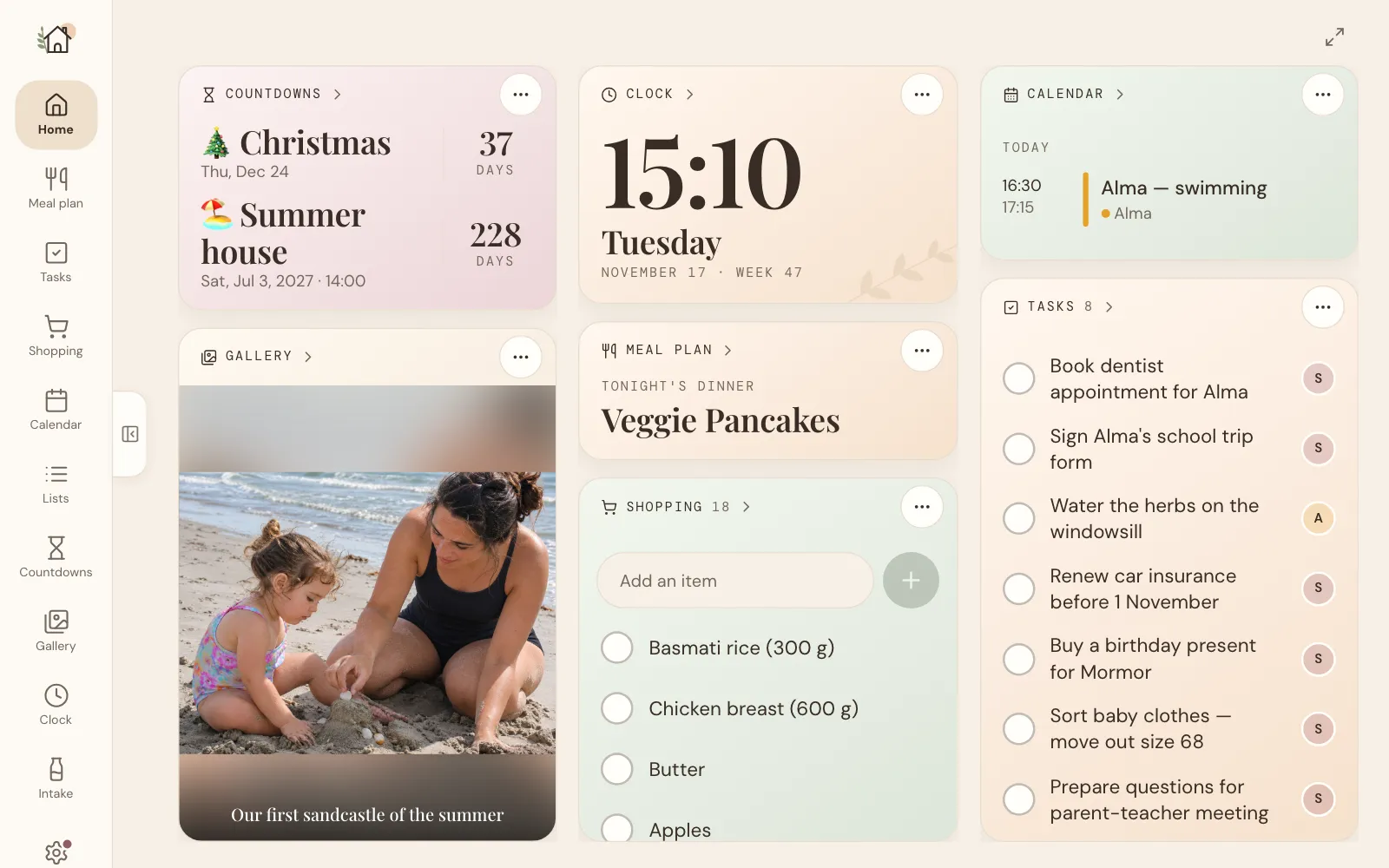
If you have a tablet in the kitchen with the Kitchen screen switched on (under Profile, on the tablet), the shopping list gets a place of its own on the board. You can add things straight from there, and tick them off, without opening anything. So whoever finishes the porridge oats can add a new bag before they forget.
Getting the most out of the shopping list
- Add it when you notice. The moment the last tin of tomatoes is opened is the moment to add tomatoes. It takes a few seconds, and nobody has to remember it later.
- Use it for more than food. Bin bags, birthday candles, a new toothbrush for Alma: if the family needs it from a shop, it can go on the list.
- Photograph the tricky ones. The right nappy size, the cat food the cat will actually eat, the gluten-free bread. One photo saves a phone call from the shop.
- Clear it when you're home. Clearing the ticked items keeps the list short, so it only shows what you still need.
- Plan dinners first. Plan the week on Sunday, tap + ingredients under each dinner, and the list for the big shop is almost written.
The list is under Shopping, at the bottom of the screen. Add the first thing you're out of, and see who ticks it off. And if there's something you'd like the list to do, tell us.
More news
All news
Announcement
Your Home, your way: move or hide any card
Drag the cards on Home to a new place, and hide the ones you don't need. Each phone and kitchen tablet keeps its own setup.

Feature spotlight
Your family's photos, on the kitchen wall
Collect the family's favourite photos in one gallery, and let them play as a slideshow on your phone, on Home and on the Kitchen screen.