Feature spotlight
Your family's photos, on the kitchen wall
Collect the family's favourite photos in one gallery, and let them play as a slideshow on your phone, on Home and on the Kitchen screen.

The best photos of the summer tend to end up the same way: one on Mum's phone, two on Dad's, and none of them looked at again until next summer.
The gallery in DaiTrace is one shared place for the family's favourite photos. Anyone grown up in the family can add a picture, give it a caption and put it in order, and everyone sees the same gallery on their own phone.
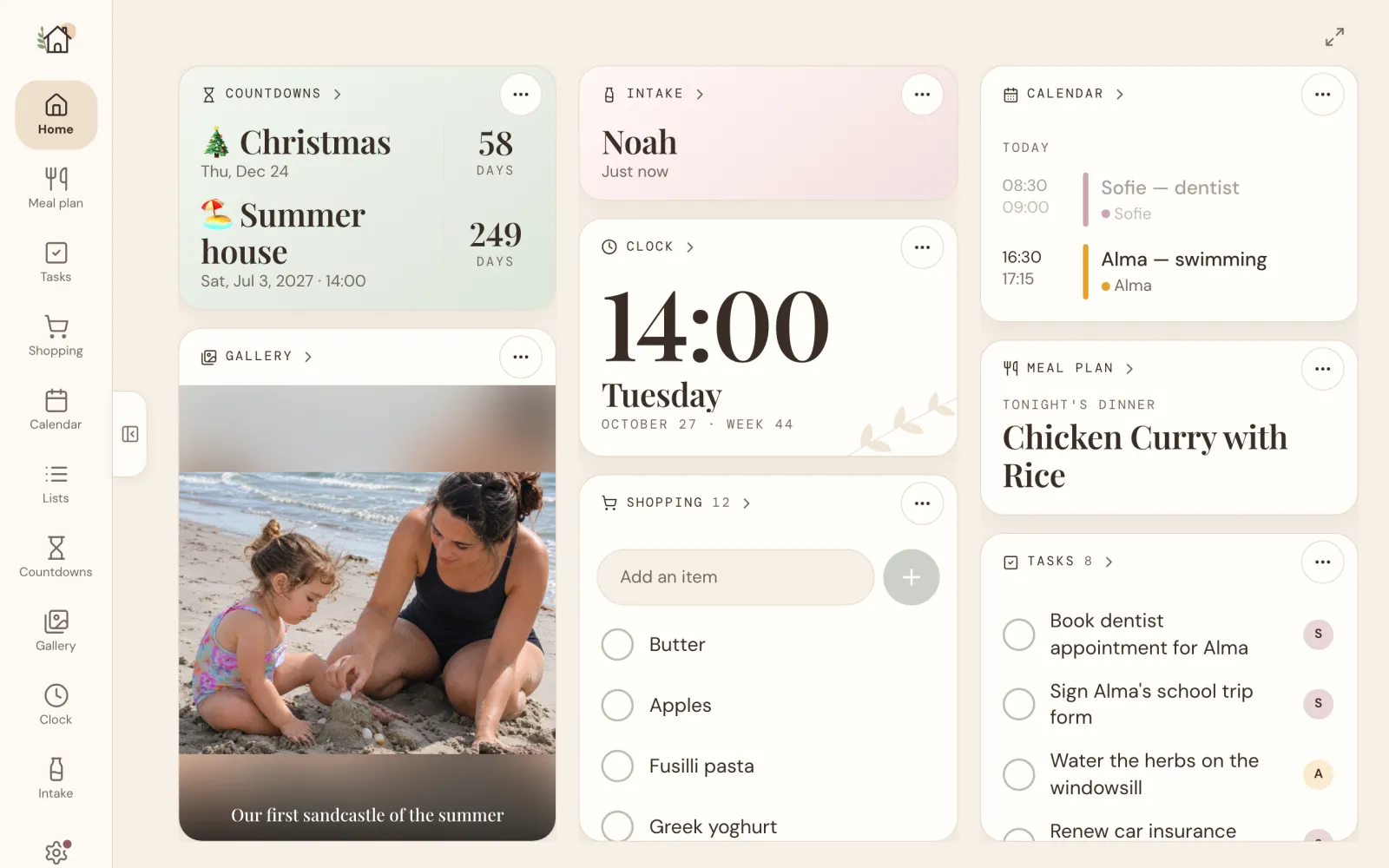
Then the photos do what photos on a fridge used to do: they're just there. The gallery plays as a slideshow on the home screen, and on a tablet in the kitchen, the beach trip and the first day of school drift by while you make the packed lunches.
How it works
Open the gallery
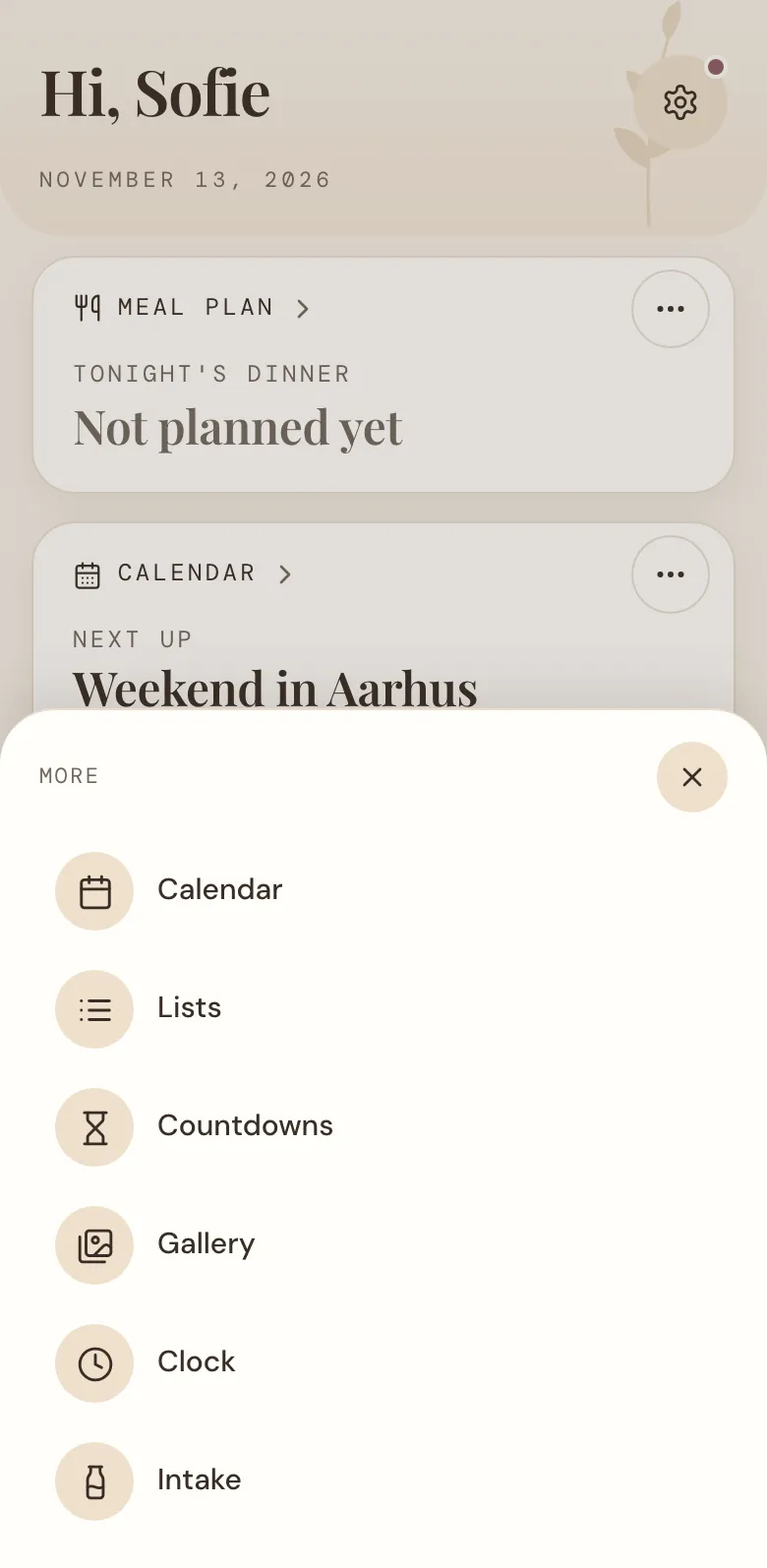
Tap More at the bottom of the screen and choose Gallery. On a tablet, Gallery is in the menu down the side.
Add your photos
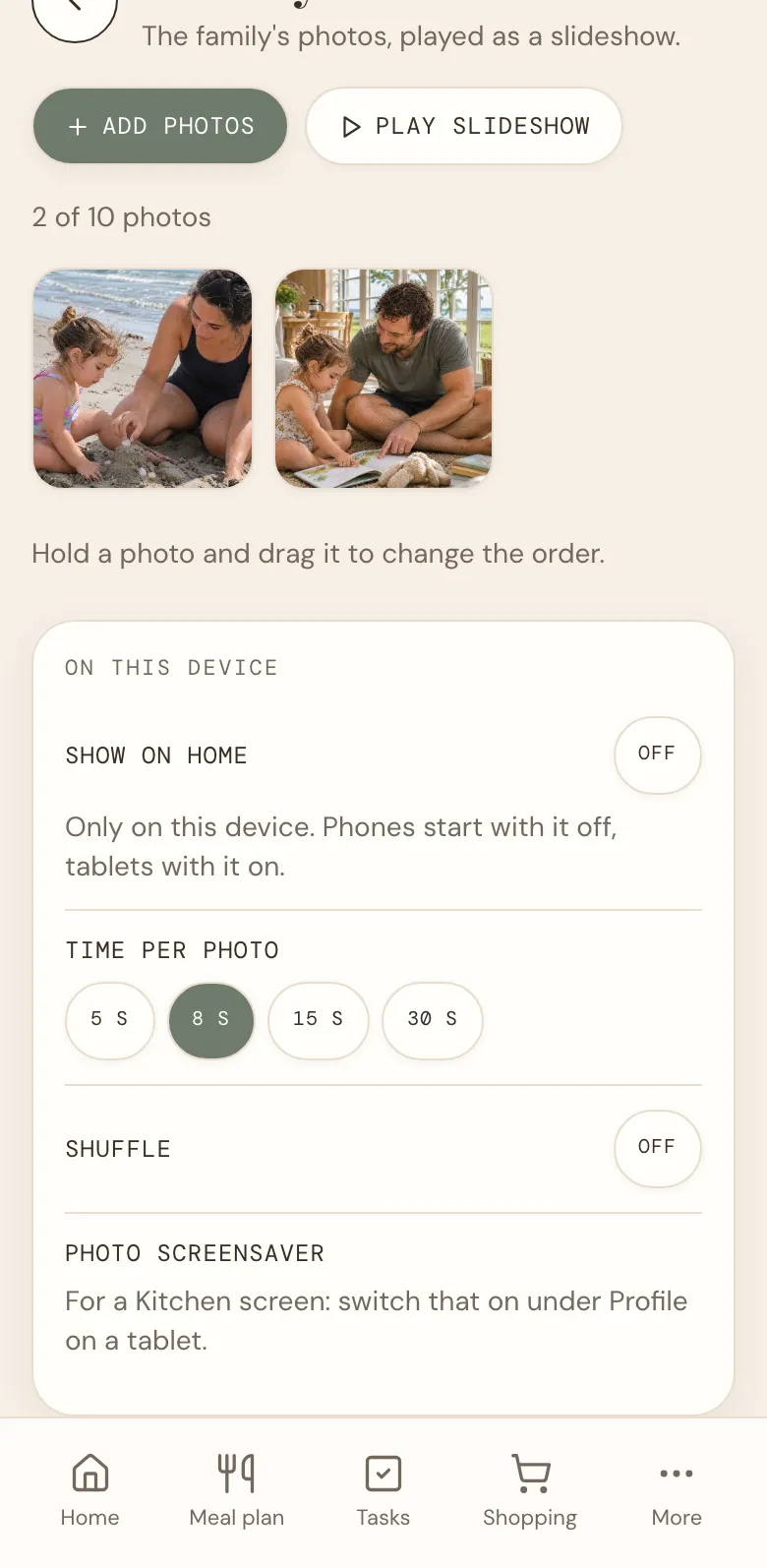
Tap Add photos and choose one or more pictures from your phone. They're added one at a time, and the line under the buttons shows how many you've added and how many there's room for.
Photos straight from an iPhone work too. DaiTrace makes each photo a sensible size before it's sent, and removes the hidden details your phone saves in it, such as where it was taken.
Give a photo a caption
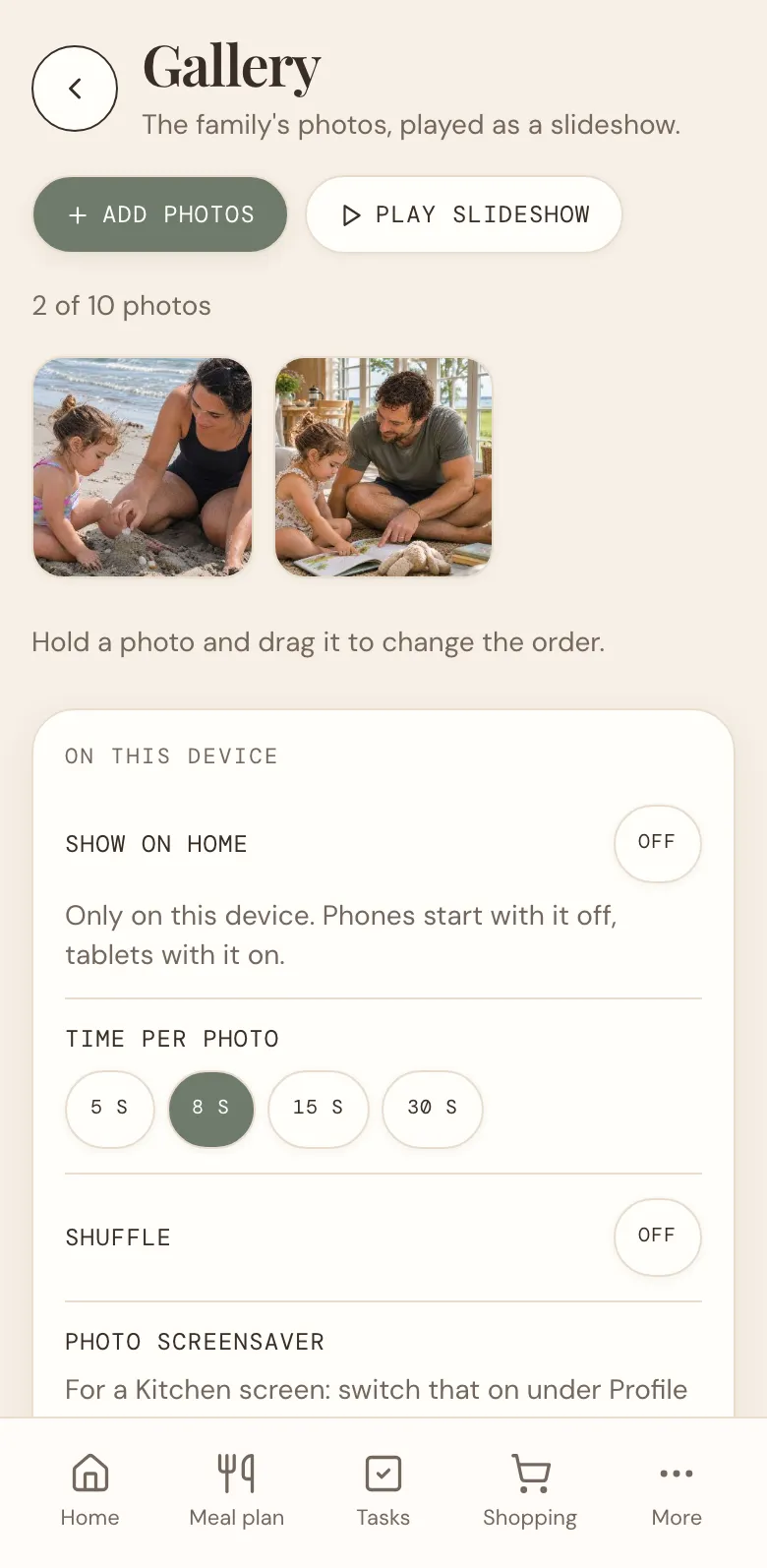
Tap a photo to open it. Here you can write a short caption, such as "Grandma's 80th" or "Our first sandcastle of the summer", and tap Save. The caption is shown over the photo when it plays.
Underneath, you can see who added the photo, and when. From here you can also start the slideshow at this photo, or delete it. DaiTrace asks first, because a deleted photo is gone for everyone.
Put them in order
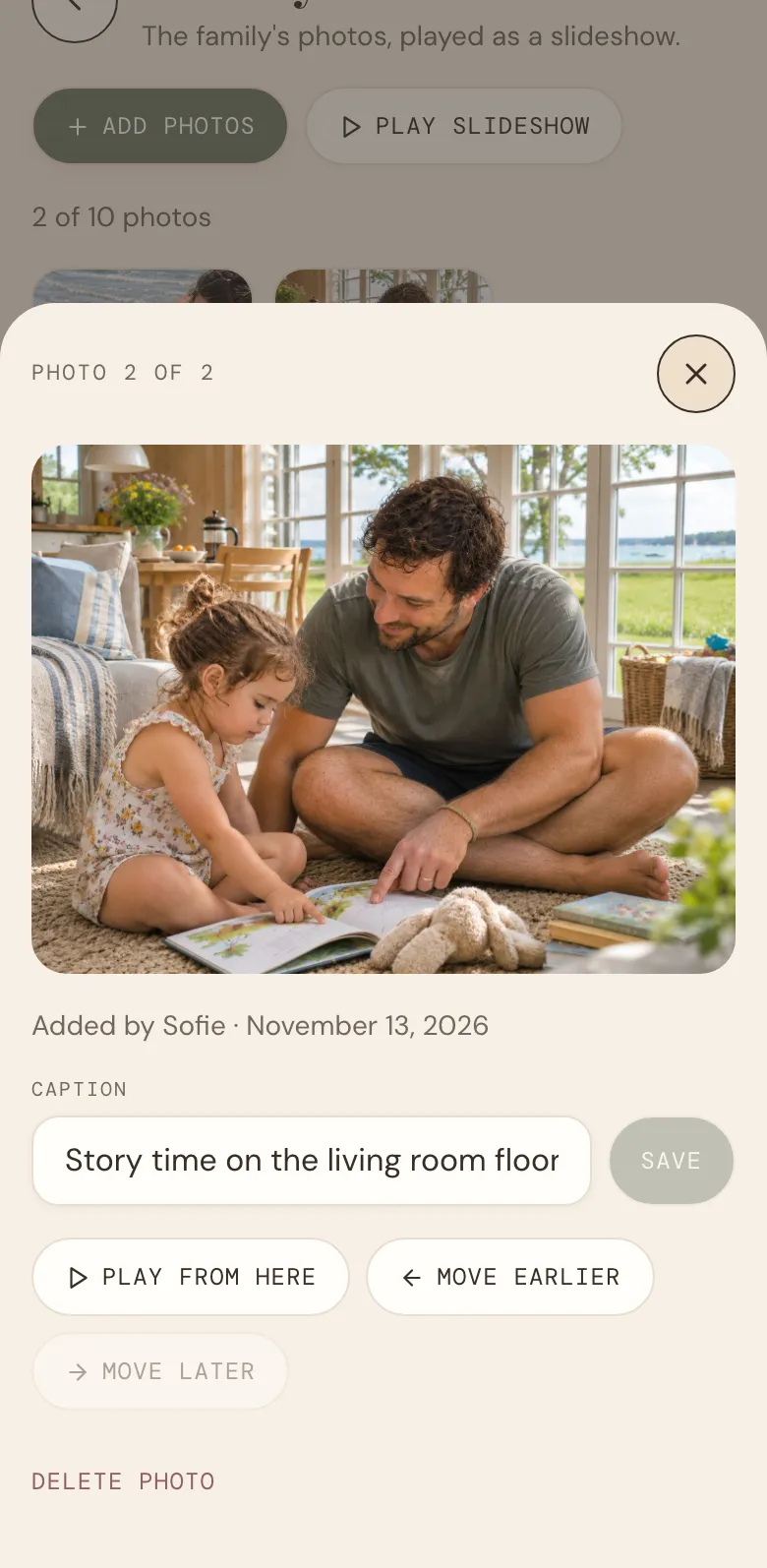
The slideshow plays the photos in the order of the gallery. To change it, hold a photo for a moment, then drag it to its new place. You can also open a photo and tap Move earlier or Move later.
Everyone in the family shares one order, so if your partner moves the holiday photos to the front, they're at the front on your phone too.
Play the slideshow
Tap Play slideshow to watch the photos full screen. A new photo fades in every 8 seconds. Swipe or use the arrows to go back and forth, and tap pause to stay on one for a while.

Put it on the home screen
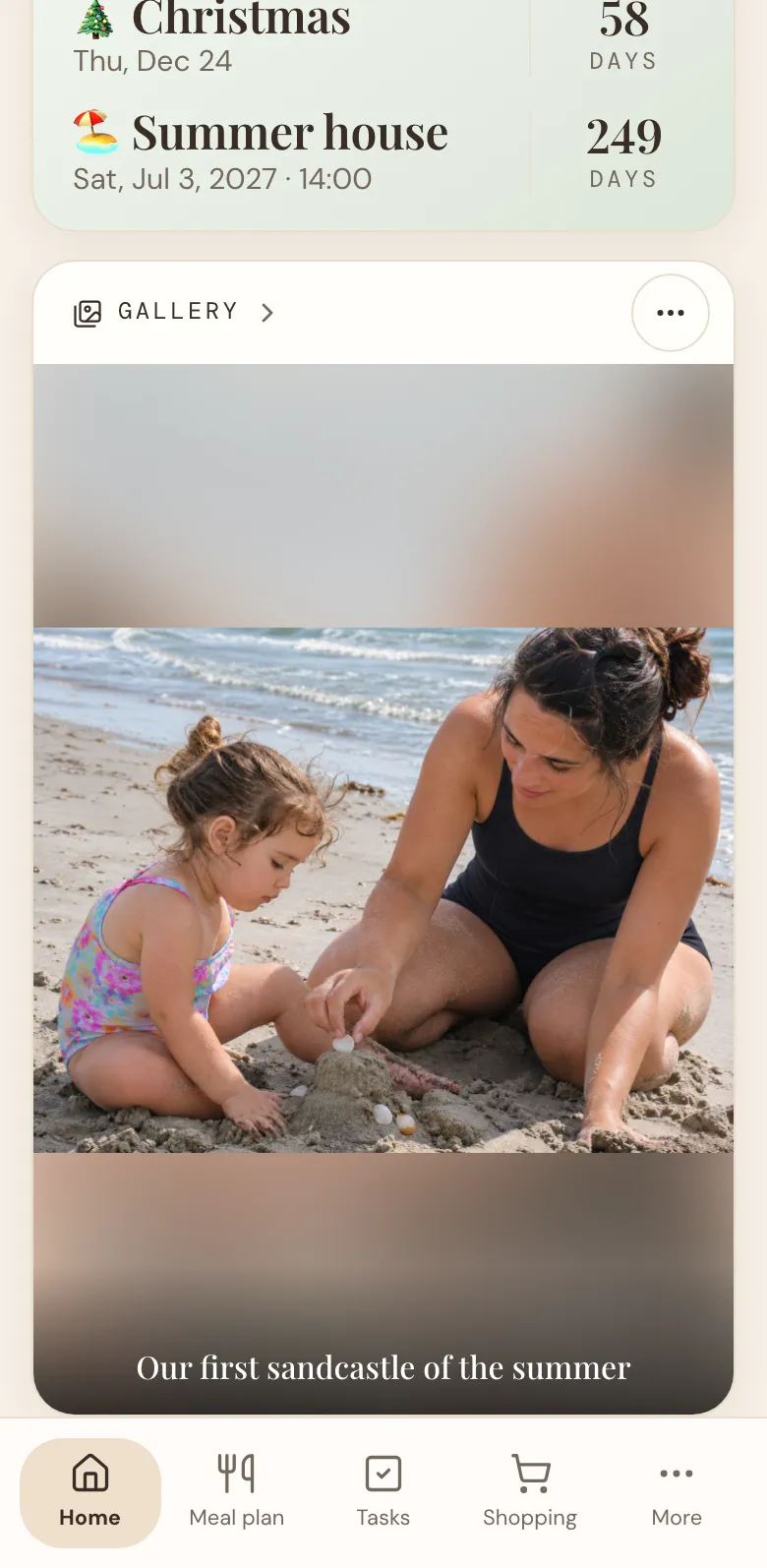
The gallery can play as a small slideshow on Home, between the other cards. Tablets show it from the start. On a phone, it's off until you want it.
To switch it on, scroll down on the Gallery page to On this device, and turn on Show on Home. The setting is for this device only, so it doesn't change anything on the rest of the family's phones.
Choose how it plays
Under On this device on the Gallery page, you can also choose:
- Time per photo: 5, 8, 15 or 30 seconds.
- Shuffle: a different order every time, instead of the gallery's.
The same settings are in the ⋯ menu on the Gallery card on Home, together with Hide on this device.
On the Kitchen screen
If you have a tablet on the fridge or the kitchen counter with the Kitchen screen switched on (under Profile, on the tablet), the gallery gets a big place on the board. It plays next to the calendar, the meal plan, the shopping list and the tasks.
The Kitchen screen can also turn into a photo screensaver. When nobody has touched it for a while during the day, the photos fill the whole screen. A tap, and the board is back.
At night, the night clock takes over as before, so the kitchen isn't lit up by the holiday photos at 2 in the morning. You choose when the night starts and ends under Profile, and how long the screen waits before the photos come on (2, 5, 10 or 30 minutes, or never) on the Gallery page.
Getting the most out of the gallery
- Pick favourites, not everything. The gallery has room for a handful of photos, not your whole camera roll. It's the photos you'd put on the fridge.
- Change them with the seasons. Swap the summer photos for the first snow, or the birthday party for the trip to Grandma's. A gallery that changes now and then gets looked at.
- Write captions for later. "The day Alma learned to swim" says more in a year than the photo does on its own.
- Let the children choose. Sit down together on a Sunday and pick the photos for the week. Then watch them find their own picture on the kitchen wall.
- Only your family sees them. Photos in the gallery are only shown to the people in your family, in DaiTrace.
The gallery is waiting under More → Gallery. Add your first few photos, and see who notices them first. And if there's something you'd like the gallery to do, tell us.
More news
All news
Feature spotlight
One calendar for the whole family
Swimming lessons, the dentist, the weekend away and your Google Calendar, in one place everyone can see. Here's how the family calendar works.

Announcement
Willkommen, bienvenue: DaiTrace now speaks German and French
DaiTrace is now in German and French too, so everyone in the family can plan in the language that feels like home.