Feature spotlight
One calendar for the whole family
Swimming lessons, the dentist, the weekend away and your Google Calendar, in one place everyone can see. Here's how the family calendar works.

"Is swimming on Tuesday or Wednesday?" "Who's picking Alma up after the party?" "Wait, that's this weekend?" Most families have a version of these conversations every week.
The family calendar in DaiTrace is one shared place for everything that's coming up: the swimming lessons, the dentist, the parent-teacher meeting, the weekend away. Anyone in your family can add an event, and everyone sees it straight away, on their own phone.
Each event can be for the whole family or for one person, and it shows in that person's colour. So you can tell at a glance whose week is busy, and the next thing on the calendar is always waiting for you on the home screen.
And if you already live in Google Calendar, you don't have to type anything twice. Connect it, and your Google events appear in the family calendar too, next to everything else.
How it works
Open the calendar
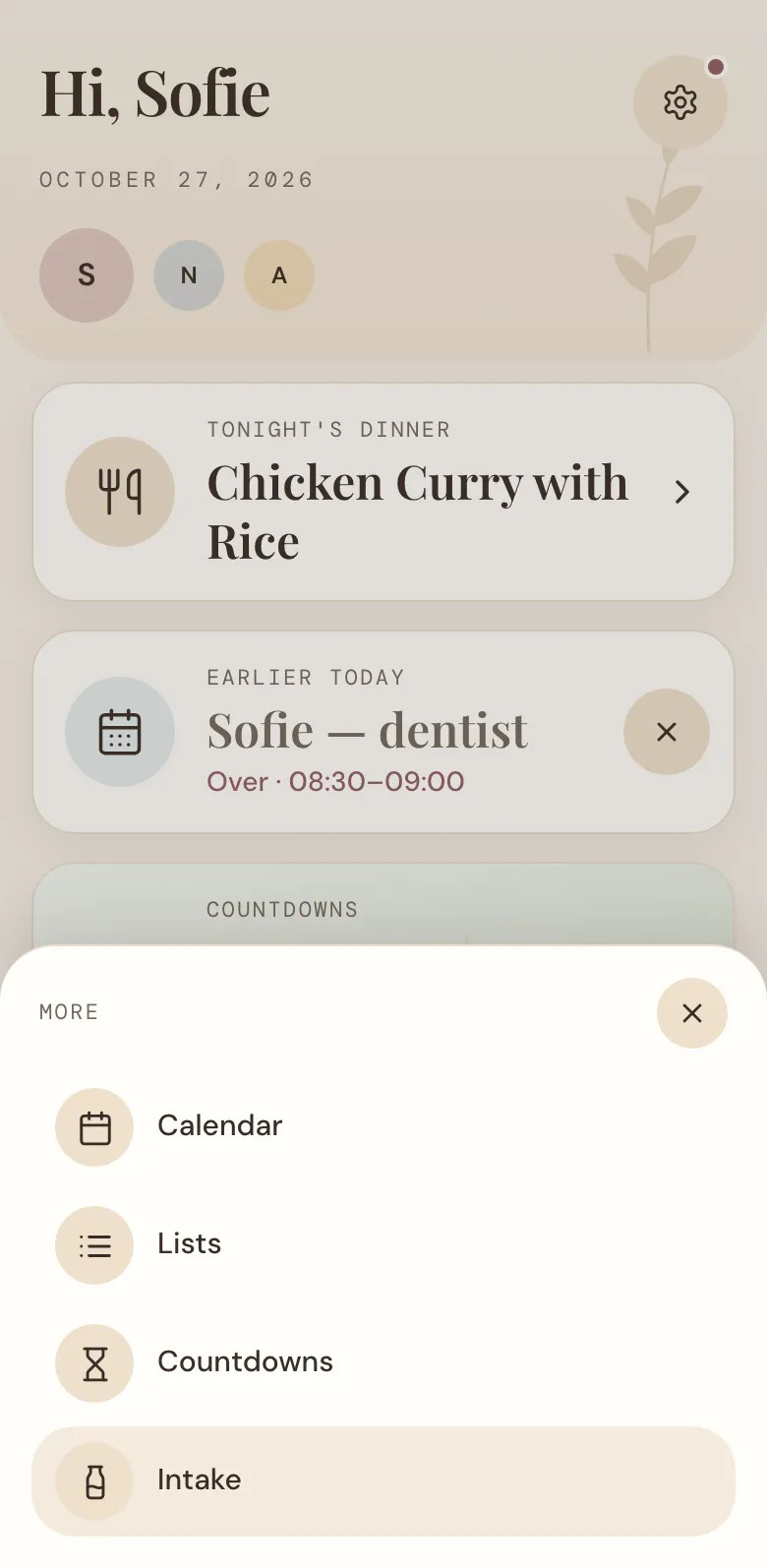
Tap More at the bottom of the screen and choose Calendar. You can also tap the Next up card on the home screen to jump straight there.
Find your way around the week
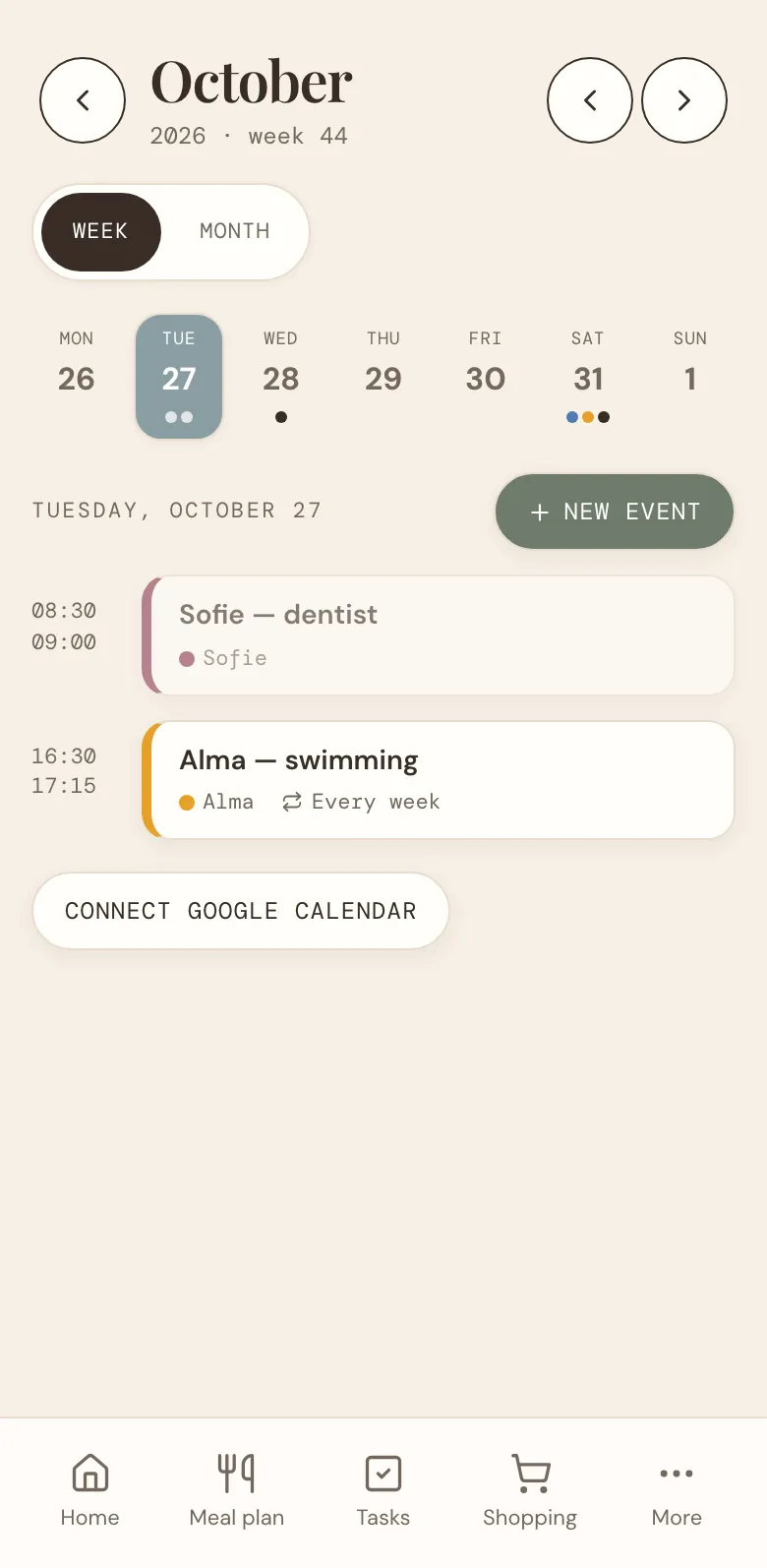
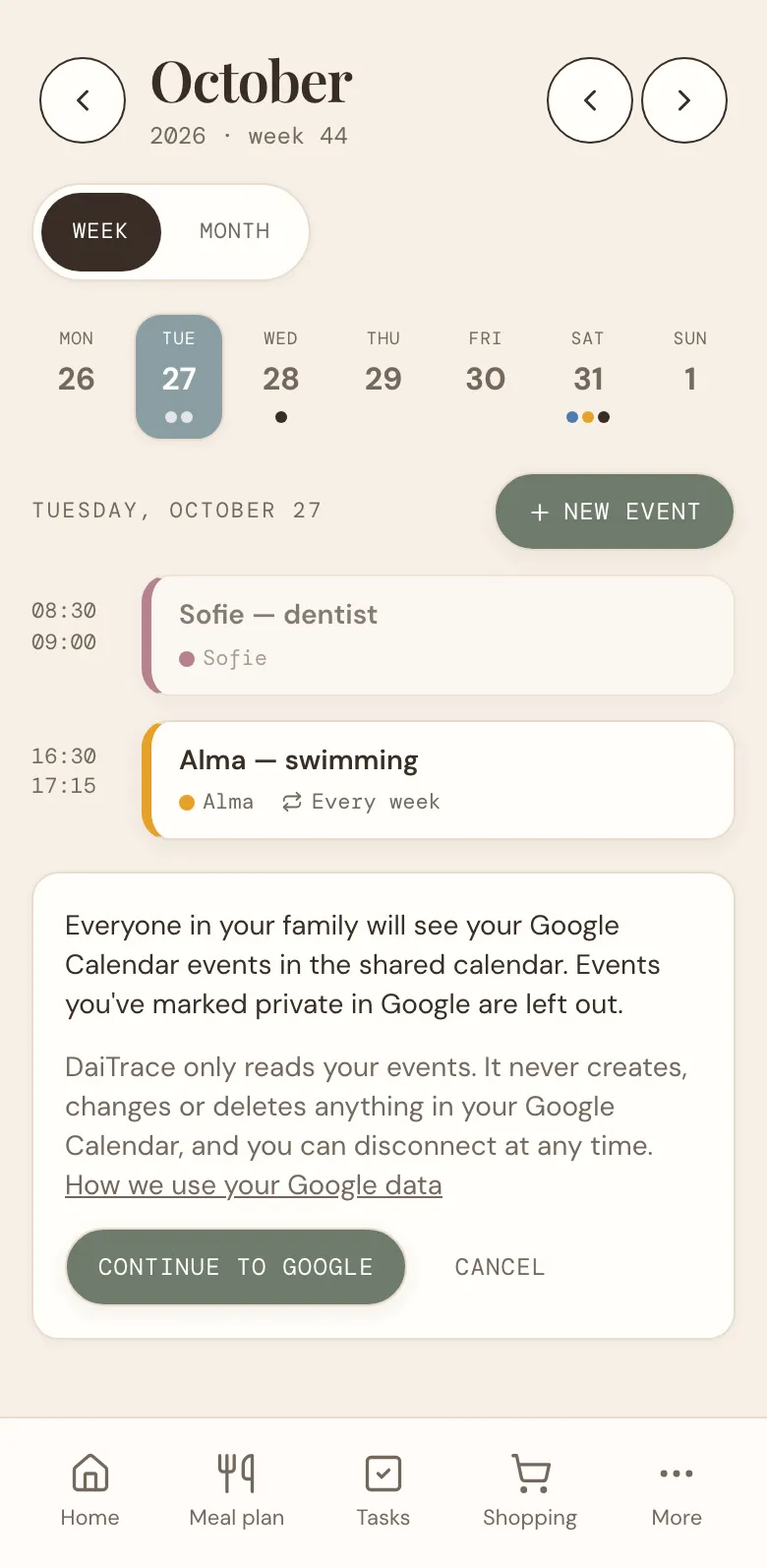
The calendar opens on this week, with today picked. Busy days have small coloured dots underneath, one per event, in the colour of the person it's for. Tap a day, and its events appear underneath, in order, with their times.
Use the arrows at the top to go a week back or forward, and tap Today to come back to today.
Add an event
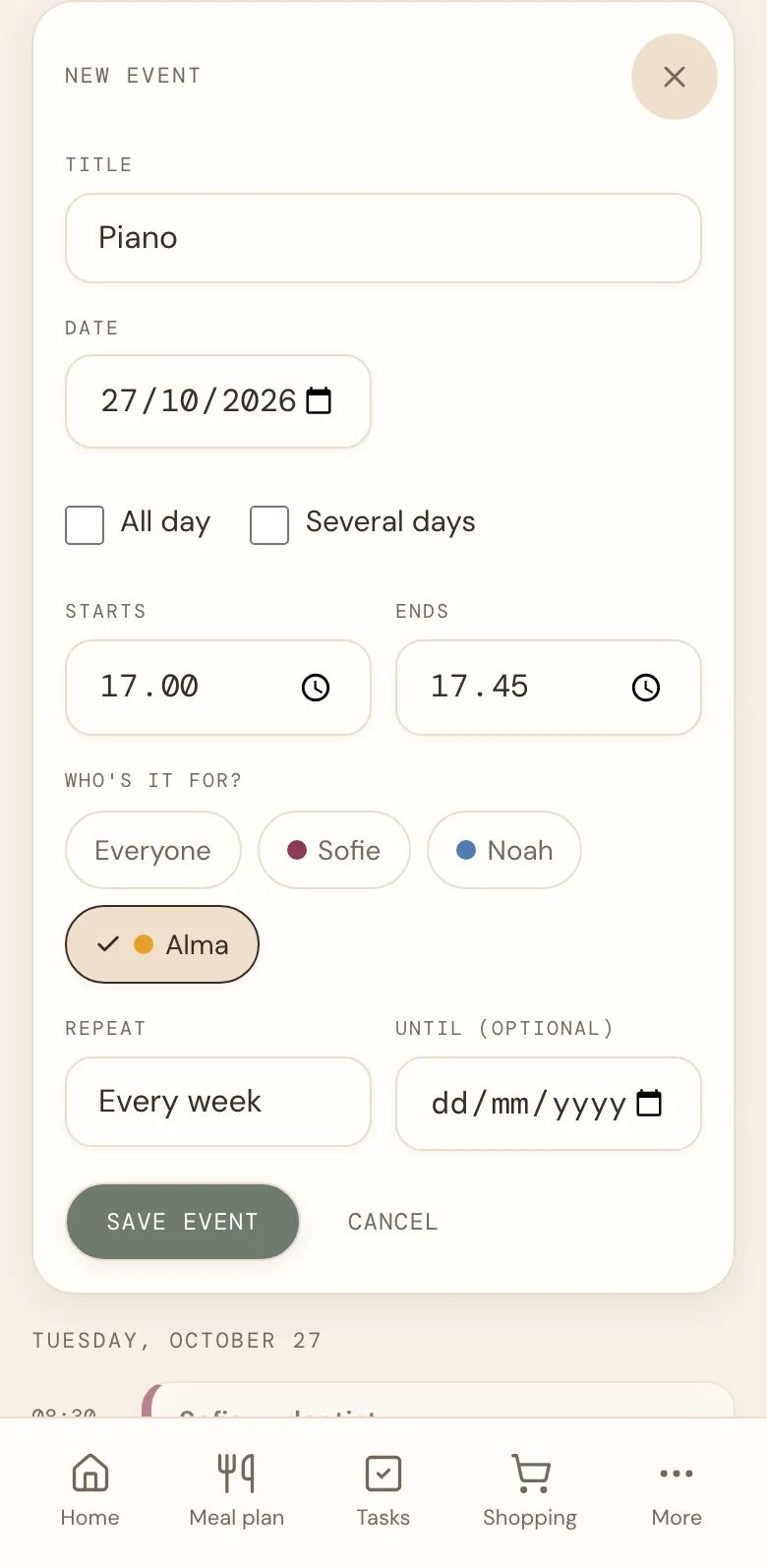
Tap New event next to the day you've picked, and fill it in:
- Title. Something short, such as "Swimming" or "Dentist".
- All day, or a time. Turn off All day to add when it starts and, if you like, when it ends.
- Several days, for a trip or a holiday. Pick the first and the last day.
- Who's it for? Everyone, or just the people it's for. An event for one person takes that person's colour.
- Repeat. Every day, every week, every other week, every month or every year. Add an end date if it stops, such as when the swimming term ends.
Tap Save event, and it's on everyone's calendar.
See the whole month
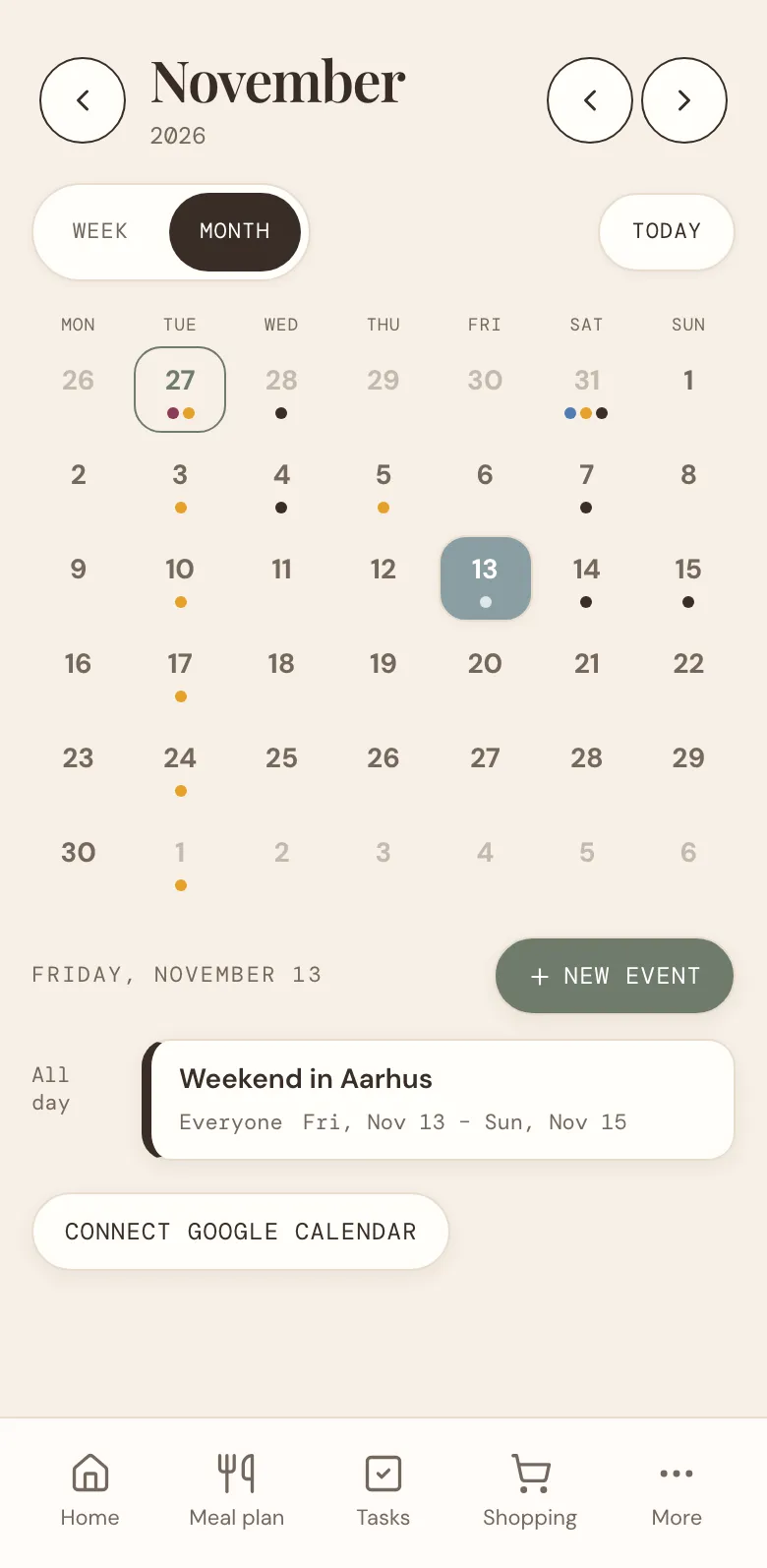
Tap Month to see the whole month at once. The dots show which days are busy, so it's easy to spot a free weekend or a week that's already full. Tap any day to see what's on it.
DaiTrace remembers whether you like the week or the month, and opens the calendar that way next time.
Change or cancel an event
Tap an event to change it or delete it. A change to a repeating event applies every time it repeats.
When you delete a repeating event, DaiTrace asks: just this day, or every time? So when swimming is cancelled for the autumn holiday, you remove that one Tuesday and keep the rest.
Bring in your Google Calendar
Work meetings, the late shift, the trip you booked months ago: if it's already in your Google Calendar, the family can see it in DaiTrace too.
Tap Connect Google Calendar at the bottom of the calendar. DaiTrace tells you what will happen before anything is shared. Tap Continue to Google, choose your account, and allow DaiTrace to read your calendar. That's it.
From then on, the events in your main Google Calendar show up in the family calendar, in your colour and marked G-CAL. They keep up with Google by themselves, so a meeting you move at work moves in DaiTrace too, usually within a quarter of an hour.
- DaiTrace only reads. It never adds, changes or deletes anything in your Google Calendar. To change a Google event, change it in Google.
- Private stays private. Events you've marked private in Google are left out.
- Everyone connects their own. Each adult can connect their own Google Calendar, so the whole family's plans end up in one place.
- You can stop any time. Tap Disconnect Google Calendar, and your Google events disappear from the family calendar.
Keep an eye on what's next
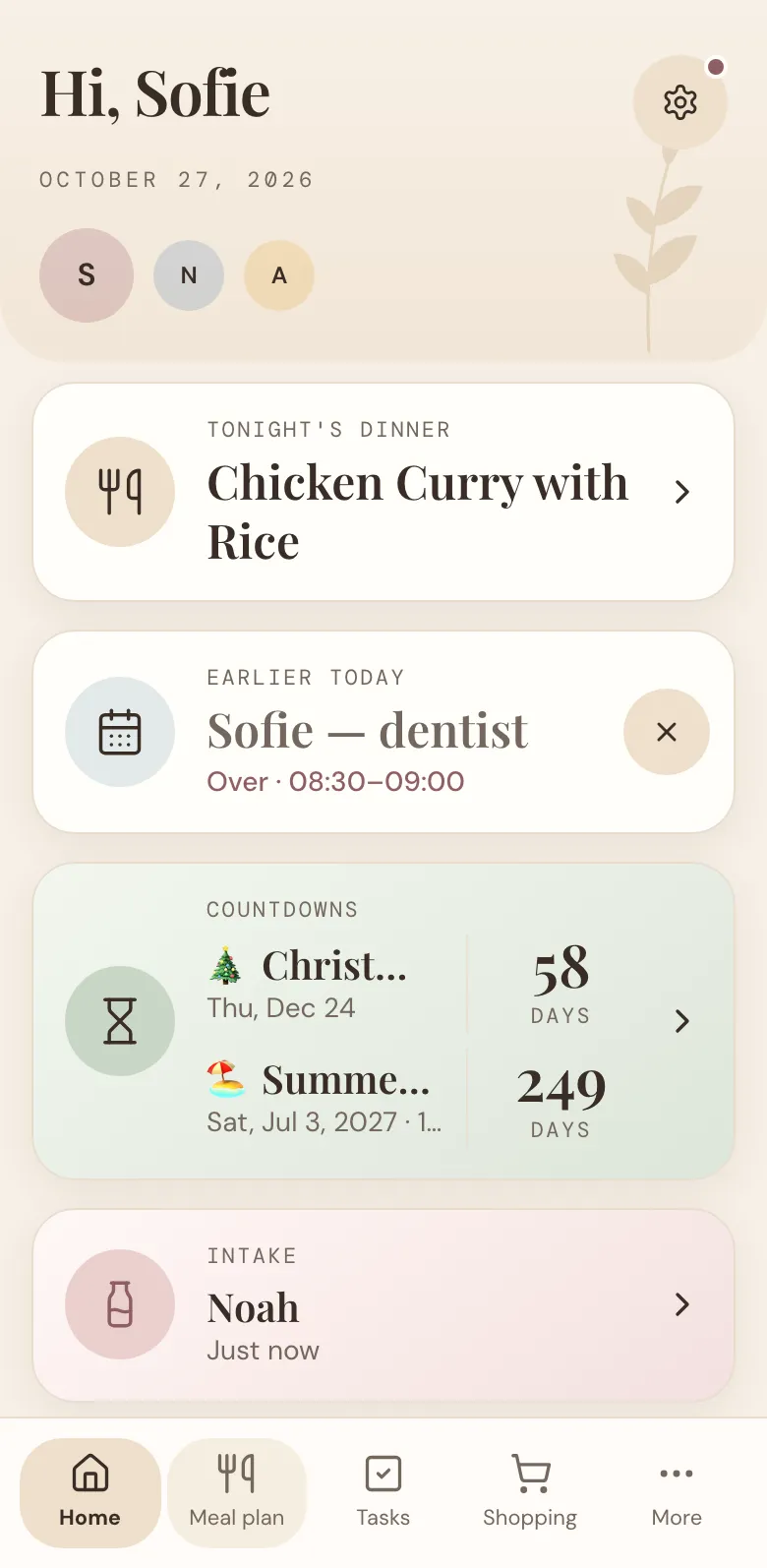
The Next up card on the home screen shows the first thing on today's calendar, or, if today is clear, the next event this week. When an event is over, it stays on the card for the rest of the day, marked Over. Dismiss it, and it's gone from everyone's phone.
Getting the most out of the calendar
- Make events for the person they're for. Everyone in the family has their own colour, and an event for one person shows in it. When the dots on Thursday are all one colour, you know whose day it is.
- Add the routines once. Football practice, piano, the weekly shop, bin day. Set them to repeat, and you never have to type them again.
- Use "every year" for birthdays and anniversaries. They'll be there next year too, and the year after.
- Turn on notifications. Then you'll get a message when someone in your family adds, changes or cancels an event, so the change of plans doesn't pass you by.
- Connect the calendars you already have. When both parents connect their Google Calendar, you can see in one glance who's free on Thursday afternoon to pick up from football.
The calendar is waiting under More → Calendar. Start with this week, and see how much quieter Monday morning gets. And if there's something you'd like the calendar to do, tell us.
More news
All news
Announcement
Willkommen, bienvenue: DaiTrace now speaks German and French
DaiTrace is now in German and French too, so everyone in the family can plan in the language that feels like home.

Feature spotlight
Countdowns, for the days your family can't wait for
Count down to Christmas, the summer holiday or a birthday together. Here's how countdowns work, and how to get the most out of them.