Feature spotlight
Who does what, and what comes first
Put the family's jobs on one list, give each one to whoever is doing it, and keep the most important at the top.

The school trip form has to be back tomorrow. Did anyone sign it? The dentist still hasn't been called, and somebody said they'd sort the baby clothes, but who?
Tasks in DaiTrace is one list of the family's jobs, on everyone's phone. Each task shows who is doing it, and the list is in order, so the most important thing is always at the top. When something's done, it's ticked off for everyone, and nobody has to ask.
How it works
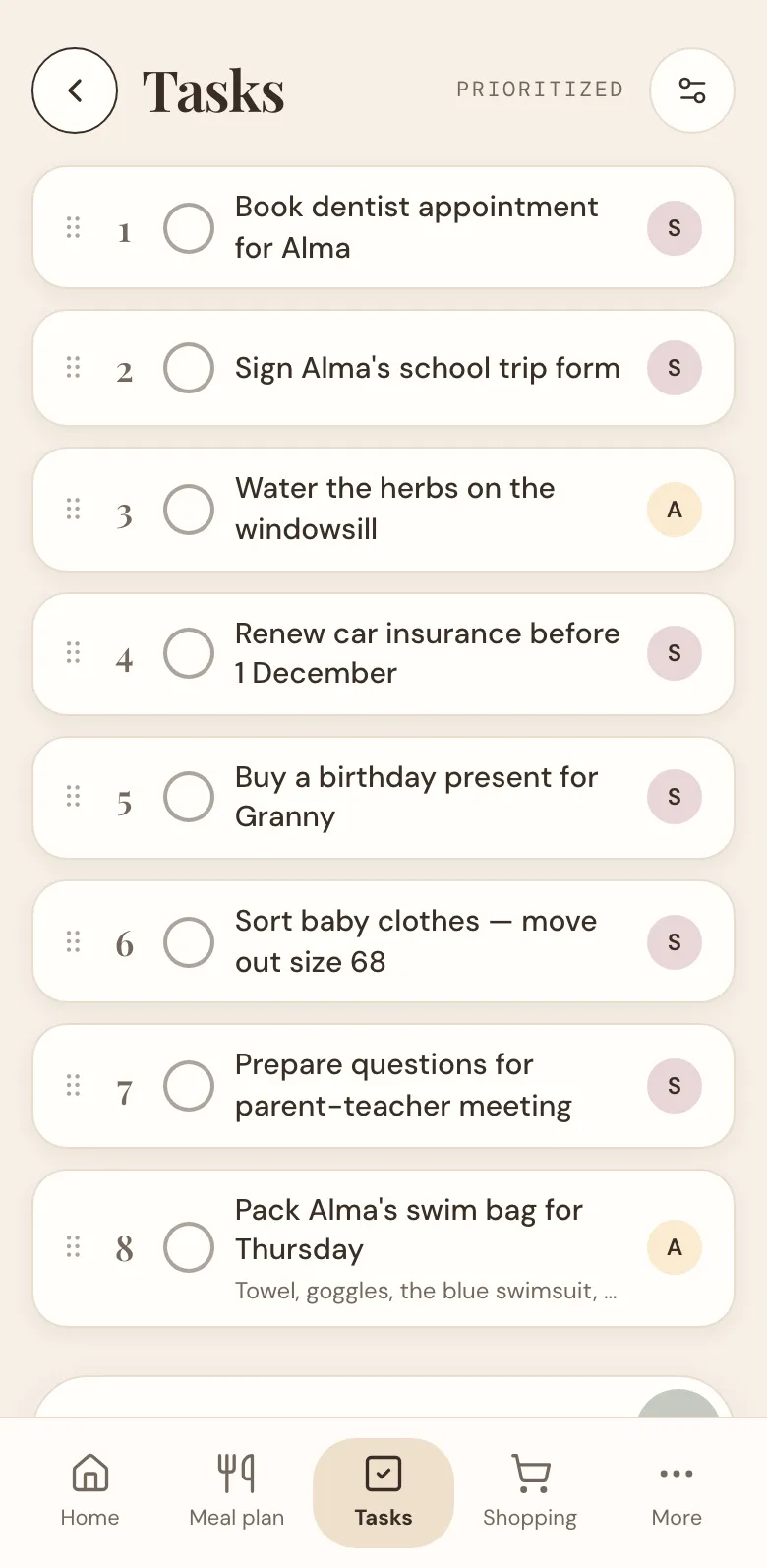
Open Tasks
Tap Tasks at the bottom of the screen. On a tablet, Tasks is in the menu down the side.
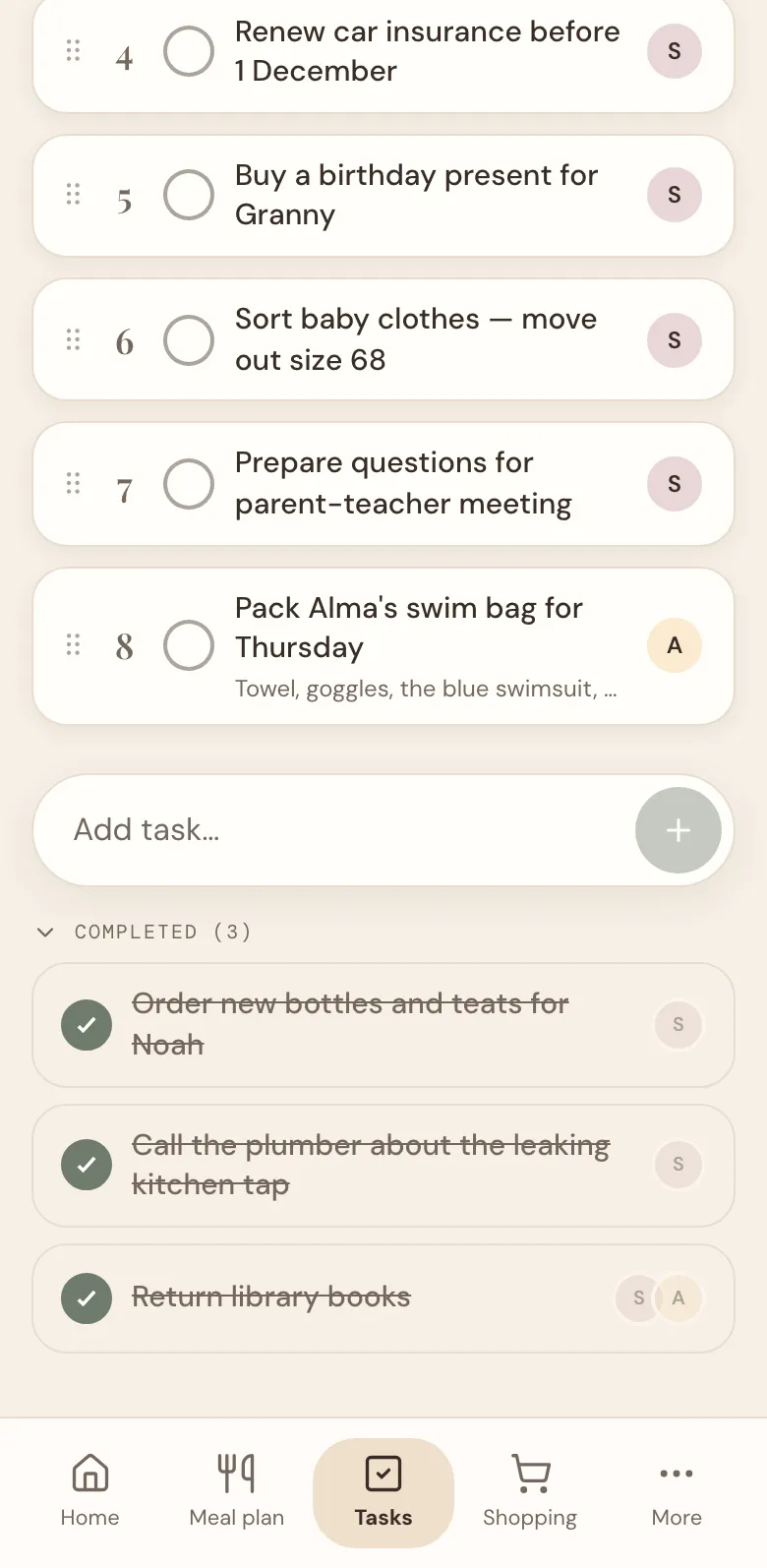
The tasks are numbered, most important first. The letter at the end of a task shows who is doing it.
Add a task
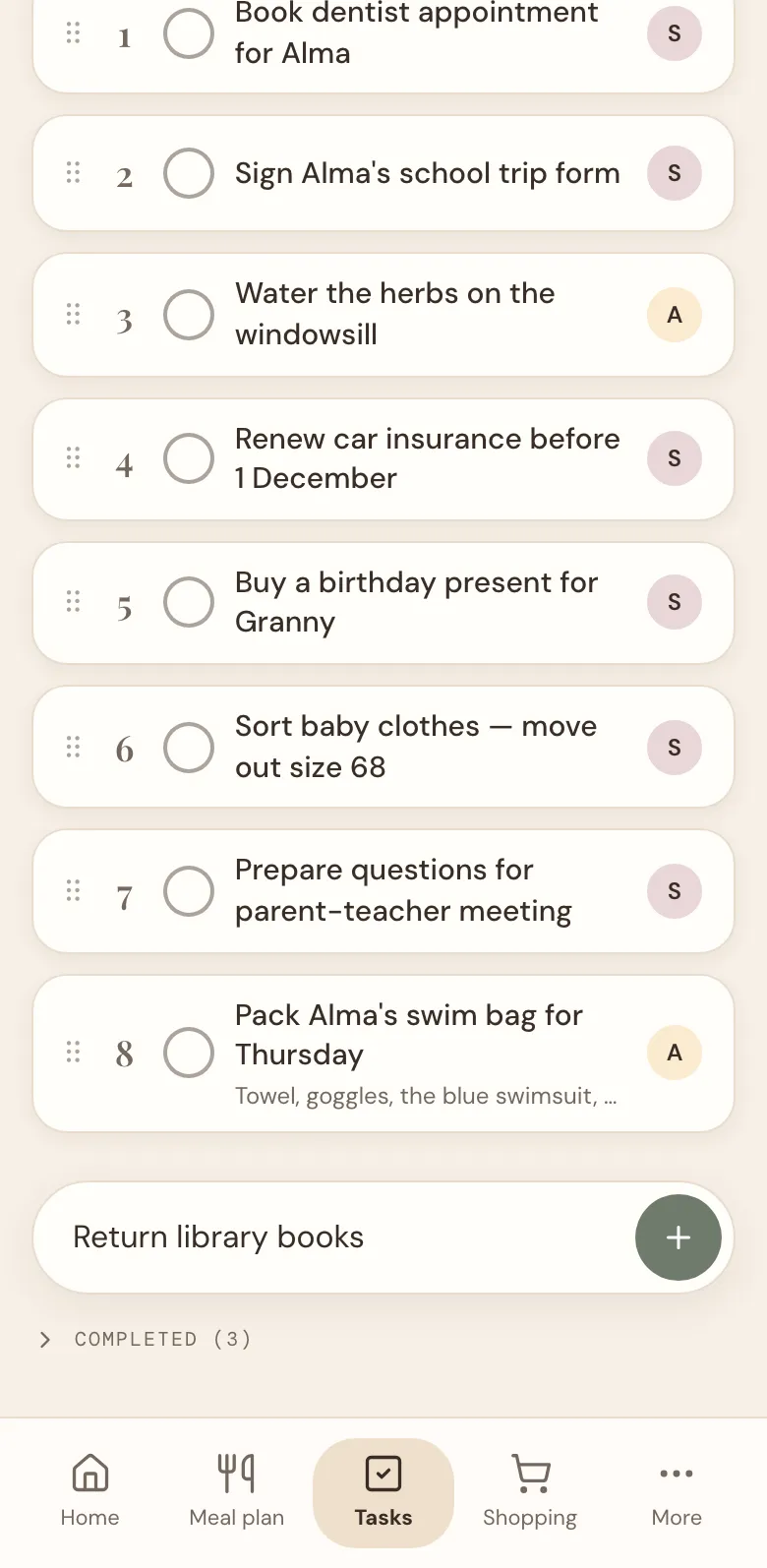
Write the task in the Add task… field under the list and tap +. It goes at the bottom of the list, for everyone in the family.
If the others have turned on notifications, their phones say so: Sofie added a task: Return library books. You turn them on under Profile, on each phone.
Put the most important first
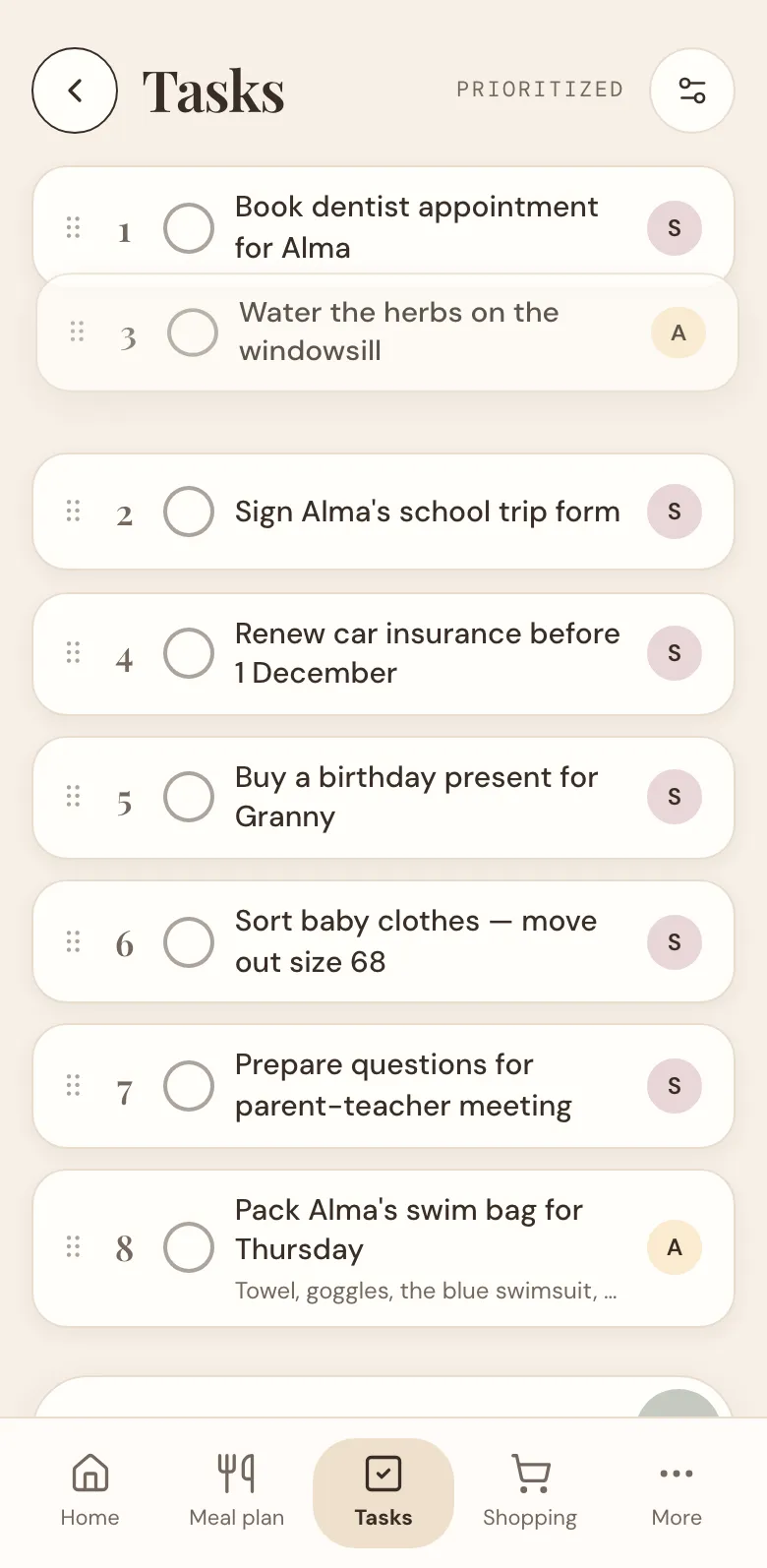
Hold the dots at the left of a task, and drag it up or down. On a phone, hold for a moment before you start moving. The numbers follow, and the order is the same on every phone in the family.
Give it to someone
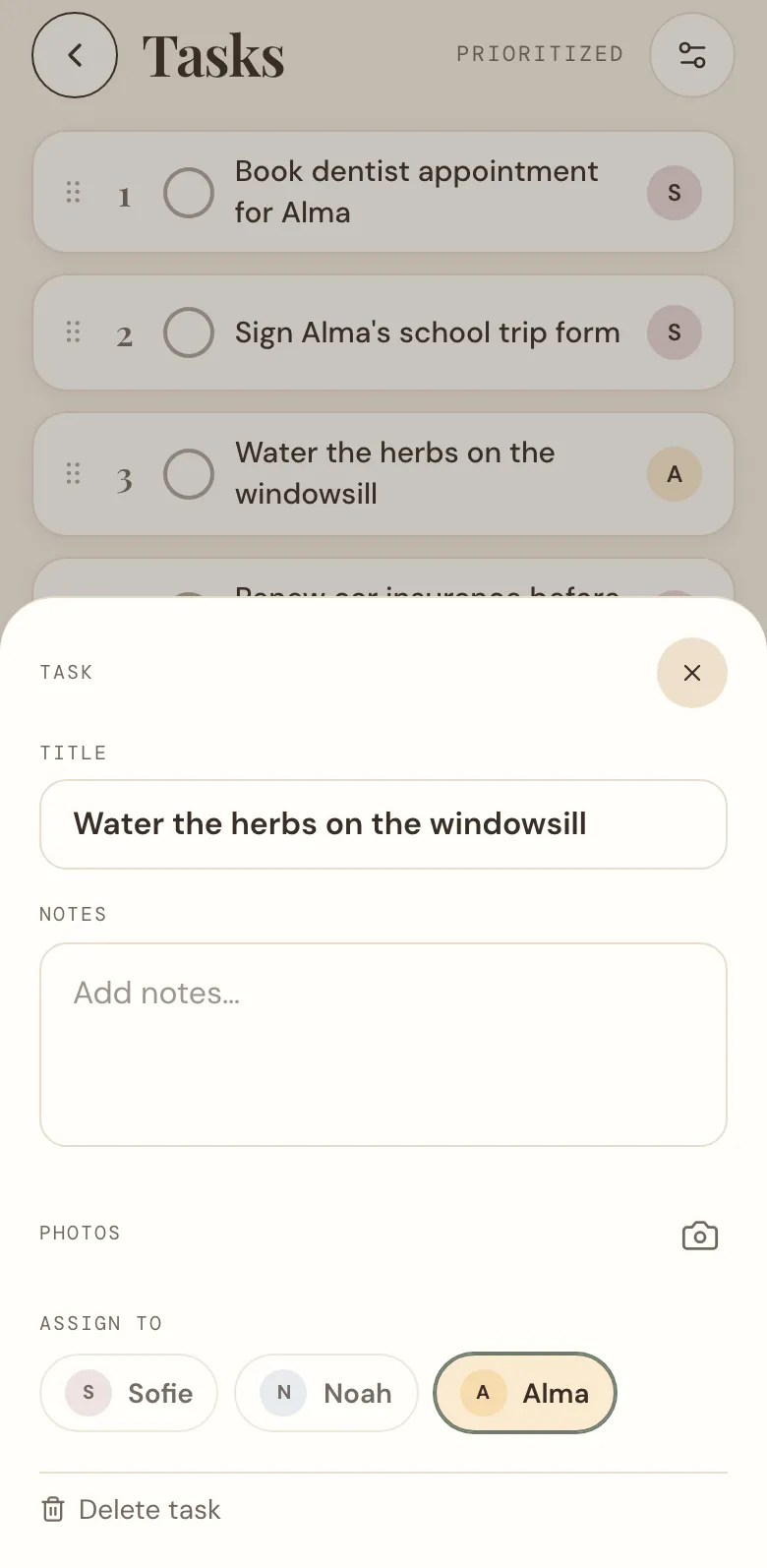
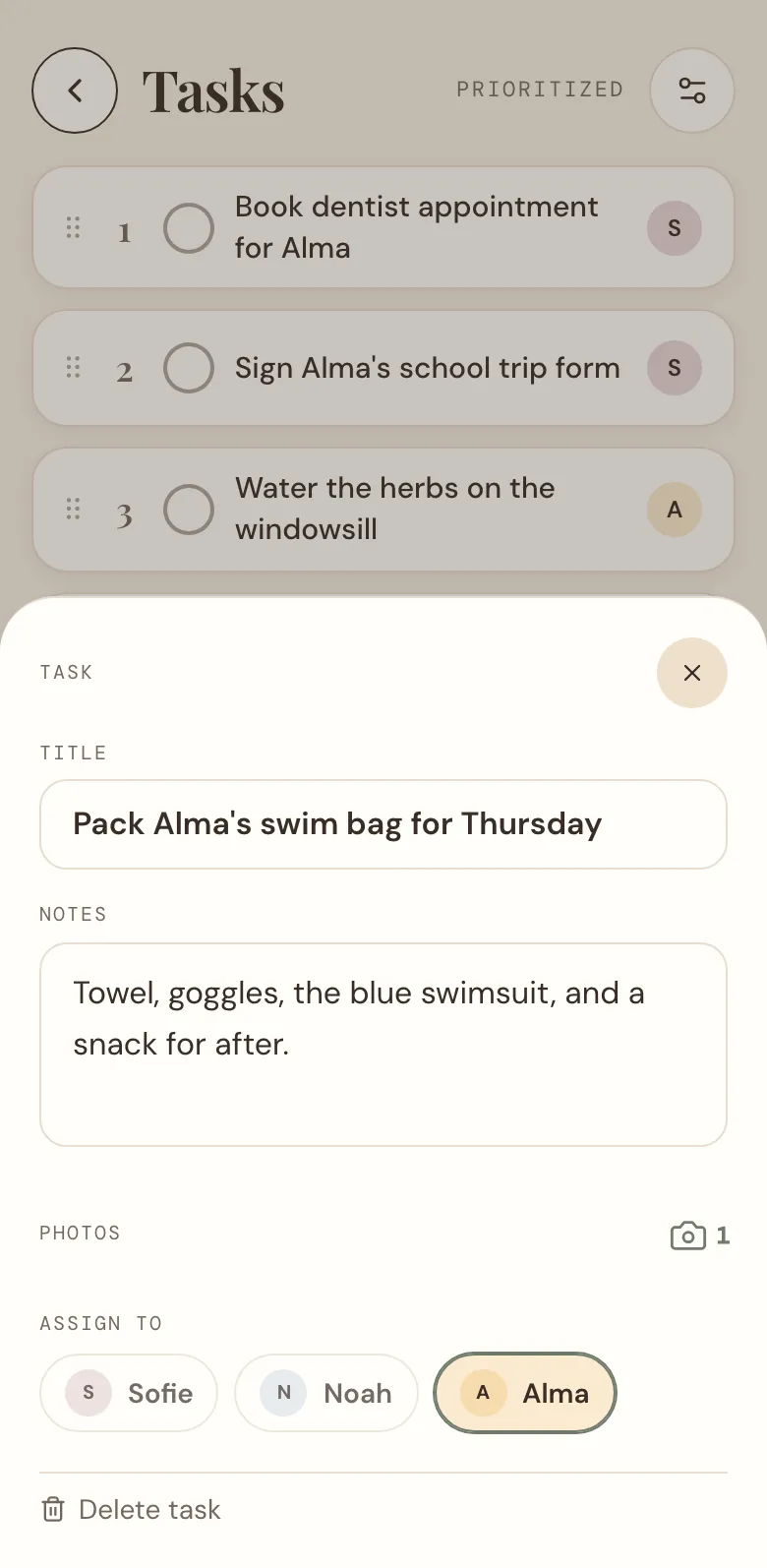
Tap the task's name to open it. Under Assign to, tap whoever is doing it. You can choose more than one person, and children too, even without a phone of their own. Tap a name again to take them off.
Their initial now shows on the task in the list, so everyone can see at a glance who has what.
Add notes and photos
Open the task, and write what's useful under Notes: the plumber's number, the size, what to bring. The start of the note shows under the task in the list. Tap the camera next to Photos to add a photo from your phone, of the form, the toy or the broken part.
Your changes are saved when you tap Save, or when you close the task.
Tick it off
Tap the circle in front of a task when it's done. It moves down to Completed, under the list. Tap Completed to see the tasks that are done, and tap a circle again to put a task back on the list.
If the others have notifications on, they see it: Sofie marked "Return library books" as done. To remove a task for good, open it, tap Delete task at the bottom, and then Delete to confirm.
On Home and the Kitchen screen
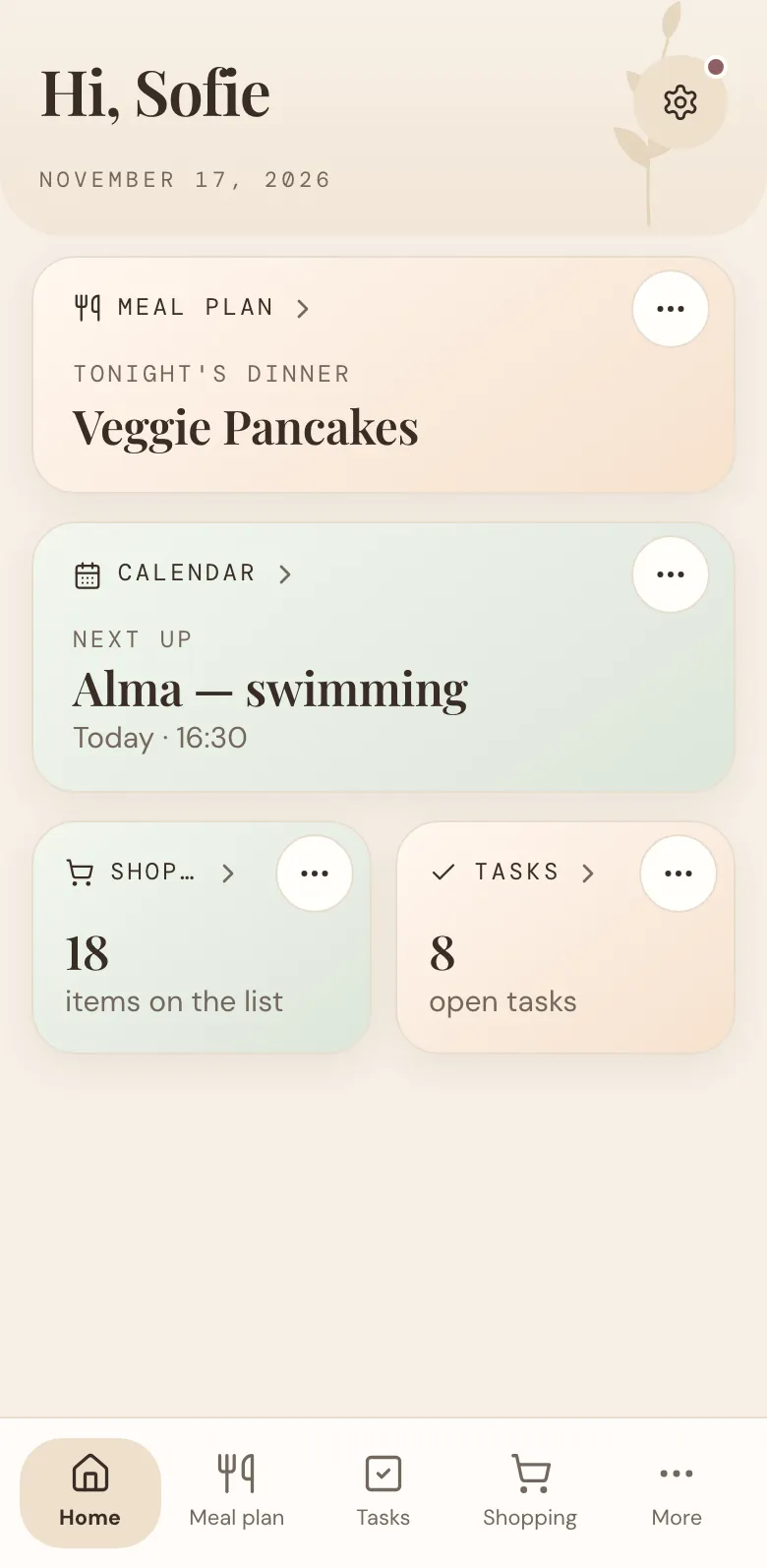
The Tasks card on Home shows how many tasks are still open. Tap it to open the list. Tap ⋯ on the card to hide it on this phone or give it a colour of its own. You can turn it back on with the settings button at the top of the Tasks page, under On this device.
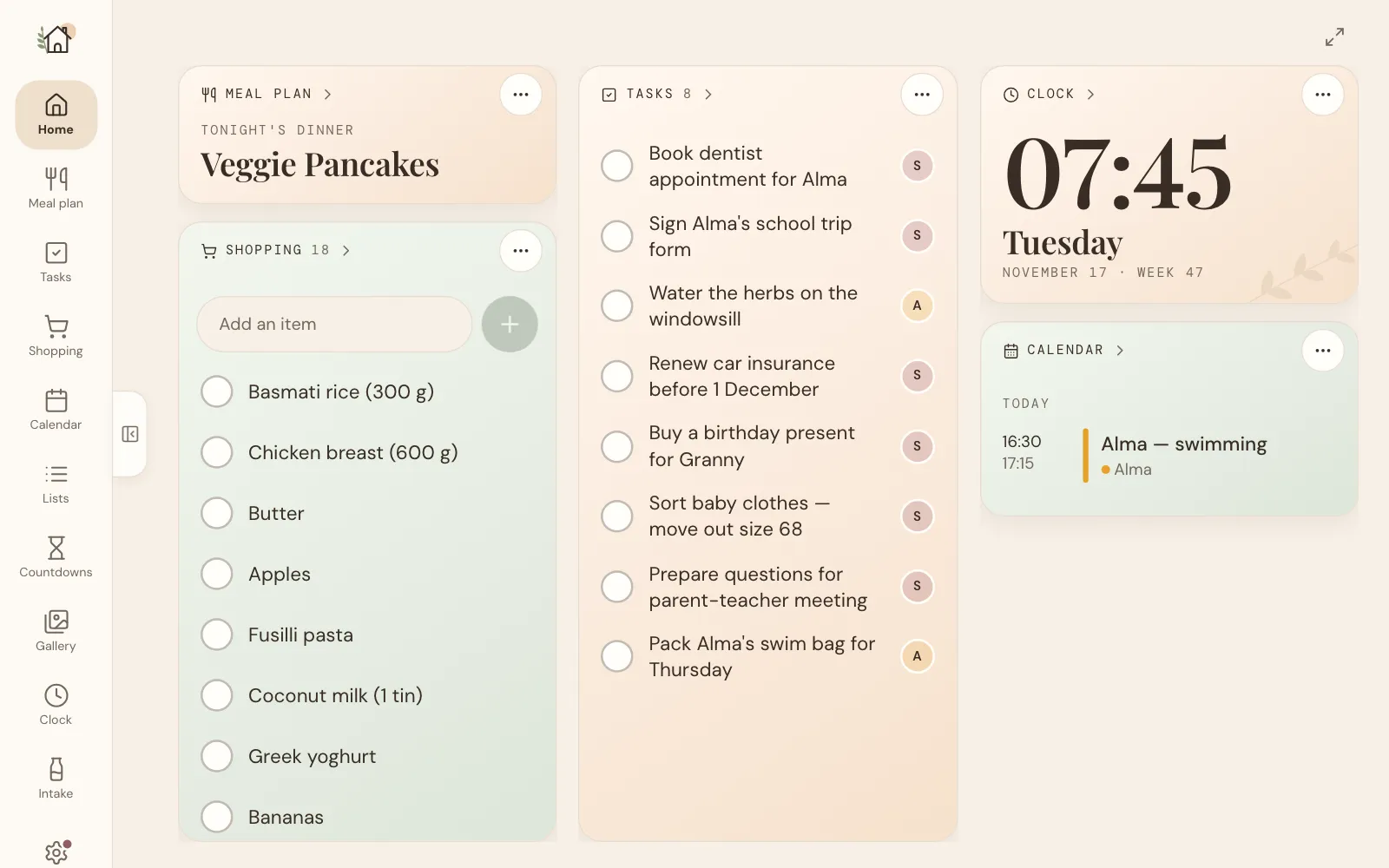
If you have a tablet in the kitchen with the Kitchen screen switched on (under Profile, on the tablet), the tasks are on the board too, with who is doing each one. Tap a task there to tick it off. It stays for a moment, crossed out, in case it was the wrong one, and then it's gone.
Getting the most out of Tasks
- Add it the moment you think of it. The dentist, the form, the present for granny: once it's on the list, nobody has to keep it in their head.
- Keep the top of the list honest. Take a minute on Sunday to drag the week's most important things to the top. Then 1, 2 and 3 are what really needs doing.
- Give every task a name. A task with nobody on it is easy to leave for someone else. If it's yours, put your name on it.
- Give the children their own. Watering the herbs, packing the swim bag: with their initial on it, it's theirs, and on the kitchen tablet they can tick it off themselves.
- Put the details in the task. A note or a photo saves the phone call that starts with "which one was it?".
Tasks is at the bottom of the screen. Add the first job that's been waiting, and see who ticks it off. And if there's something you'd like Tasks to do, tell us.
More news
All news
Feature spotlight
Every bottle, for the whole family to see
Log a bottle in seconds, see when your baby last ate, and follow the day and the week, whoever gave the feed.

Feature spotlight
One shopping list for the whole family
Add what's run out the moment you notice, tick it off in the shop, and let the week's dinners fill the list for you.